Router & Network Learning

Understand common WiFi connection screens.

Learn what different WiFi icons, router lights, connection messages, and network settings usually mean. This guide uses real-style visuals so readers can match what they see on their own screen.

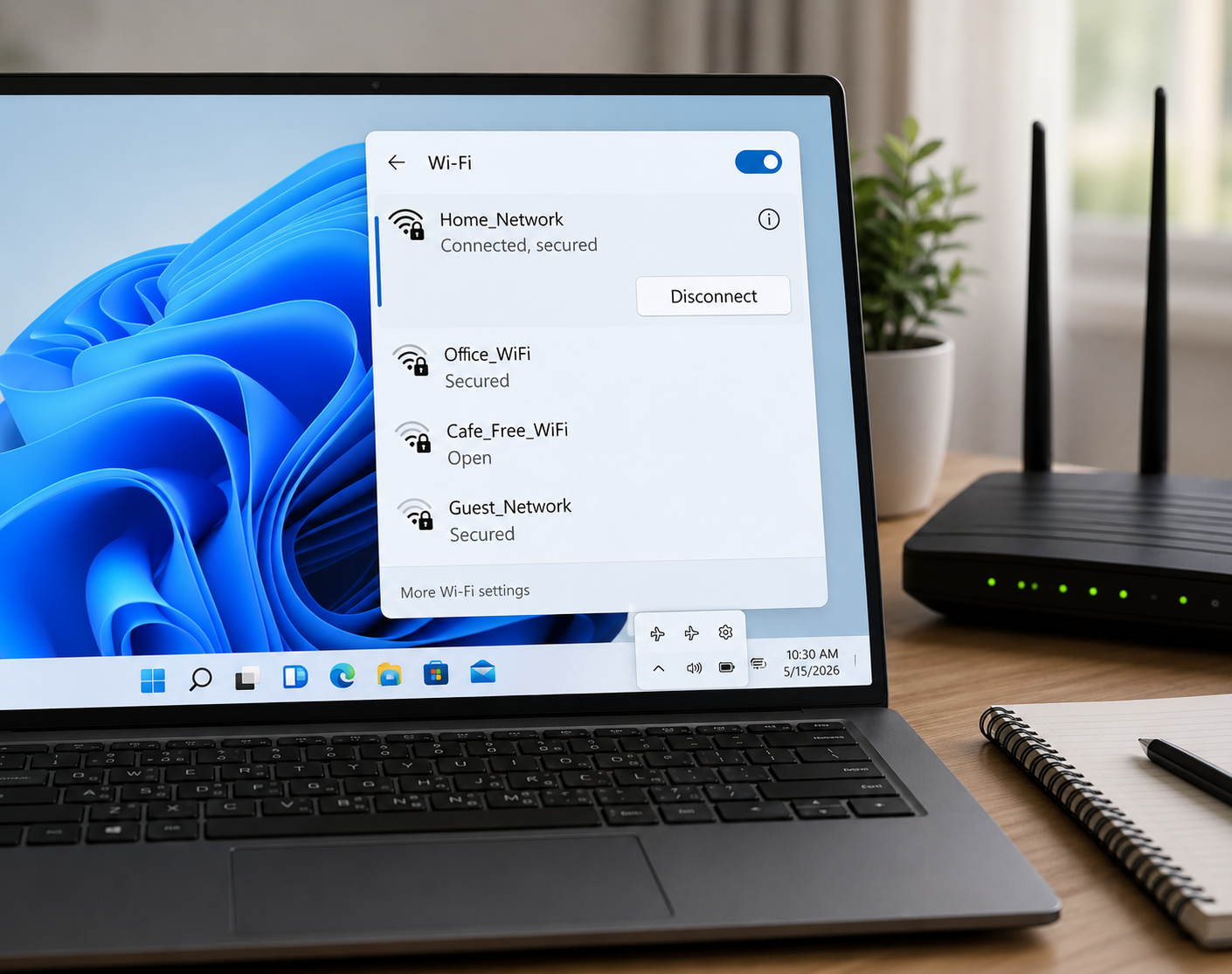
WiFi connection guide visual

Real-style network view

WiFi icon, router lights, settings, and connection messages.

What Users May See

Match the screen sign with the meaning.

These cards explain common WiFi signs in a simple way, using the kind of messages and icons users normally see.

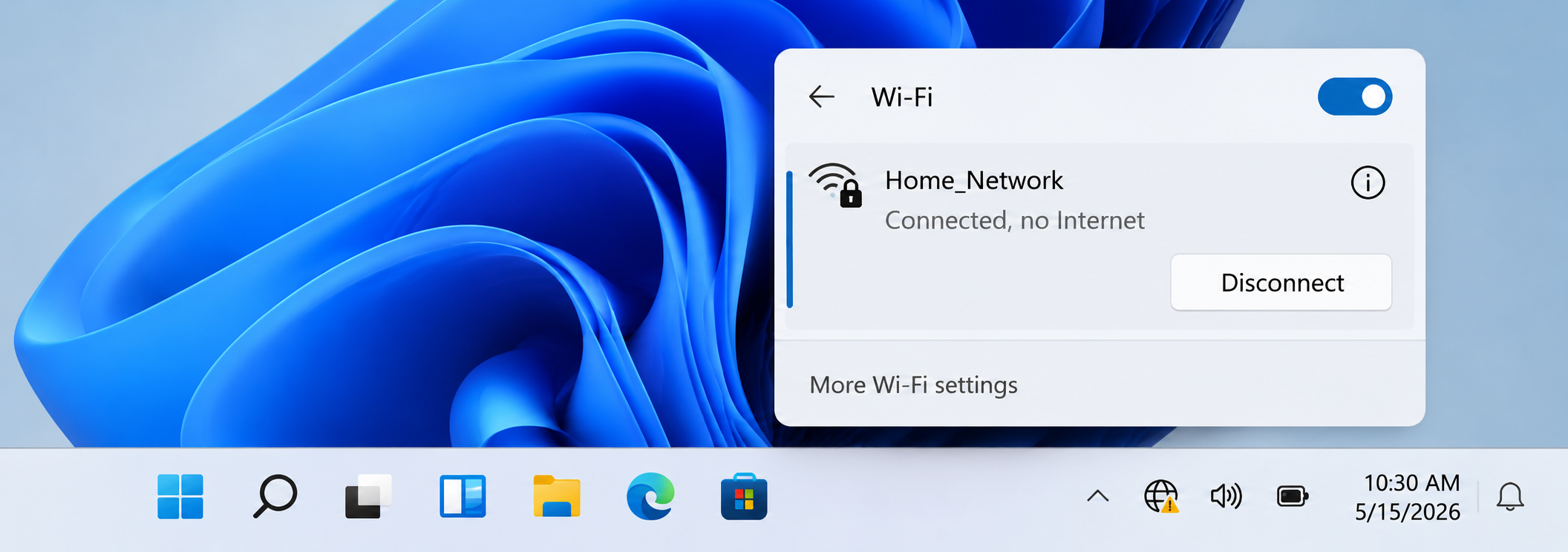
Connected, No Internet
Sign 01

Connected, No Internet

What you see

WiFi icon is connected but browser pages do not load.

What it may mean

The device may be connected to the router, but internet access may not be reaching the router.
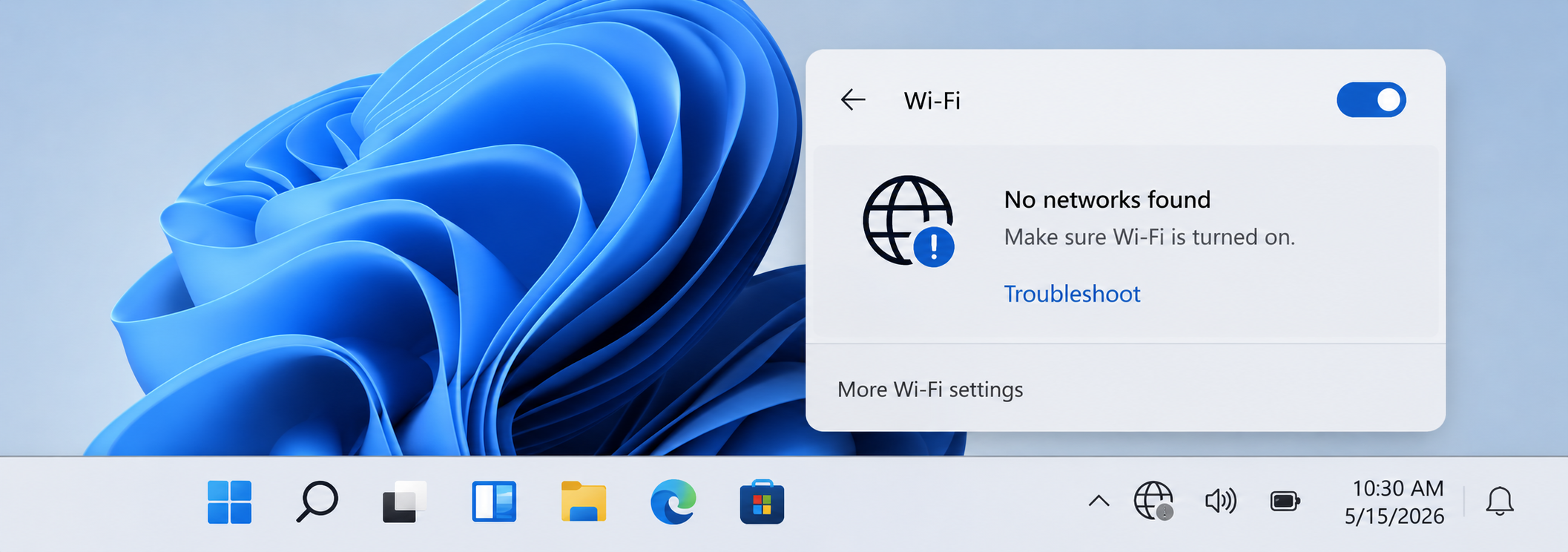
No Networks Found
Sign 02

No Networks Found

What you see

Win does not show nearby WiFi names.

What it may mean

WiFi may be turned off, airplane mode may be enabled, or the wireless adapter may not be active.

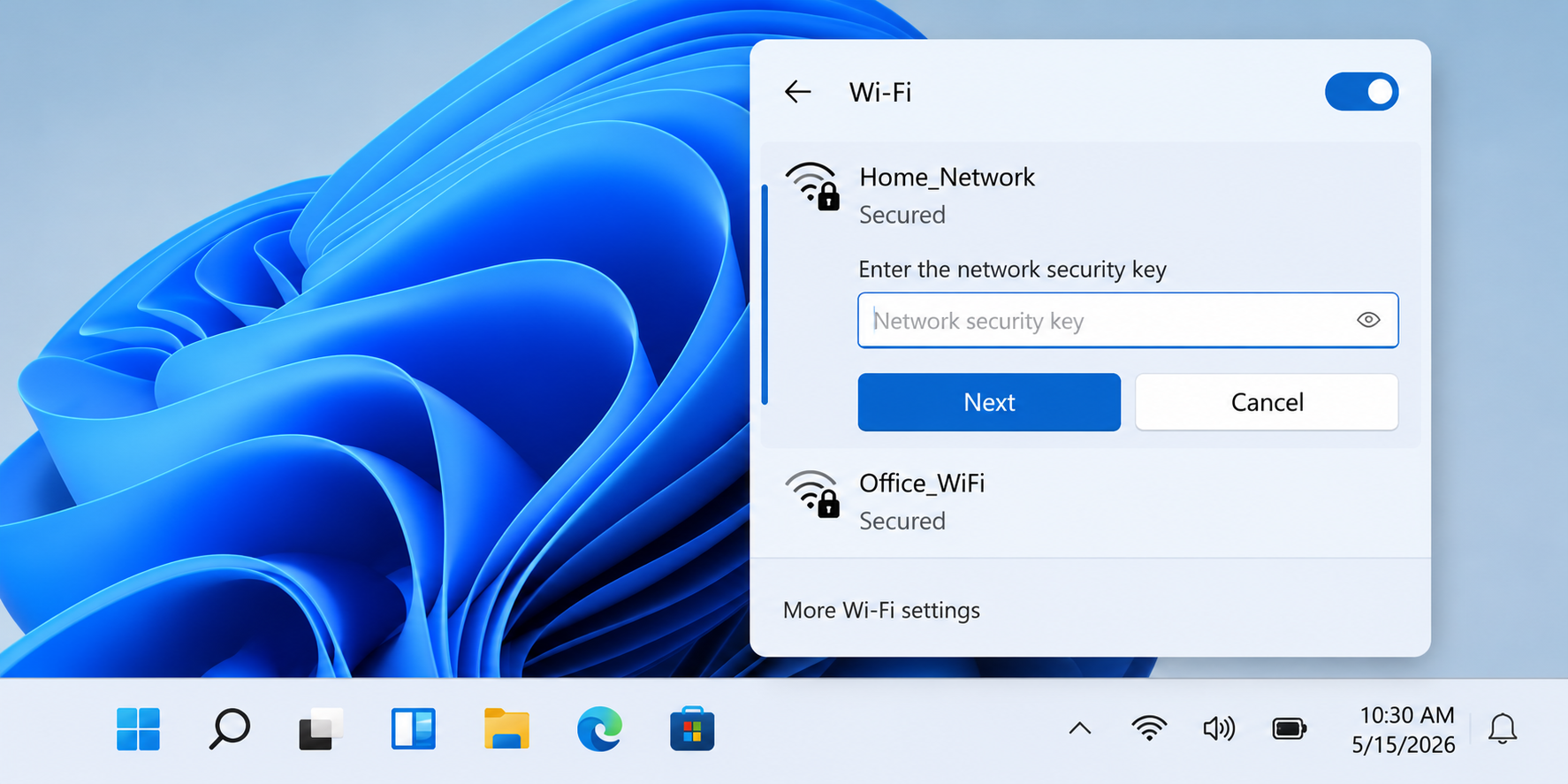
Password Required
Sign 03

Password Required

What you see

Win asks for a network security key.

What it may mean

The saved WiFi password may be missing, changed, or removed after settings were updated.

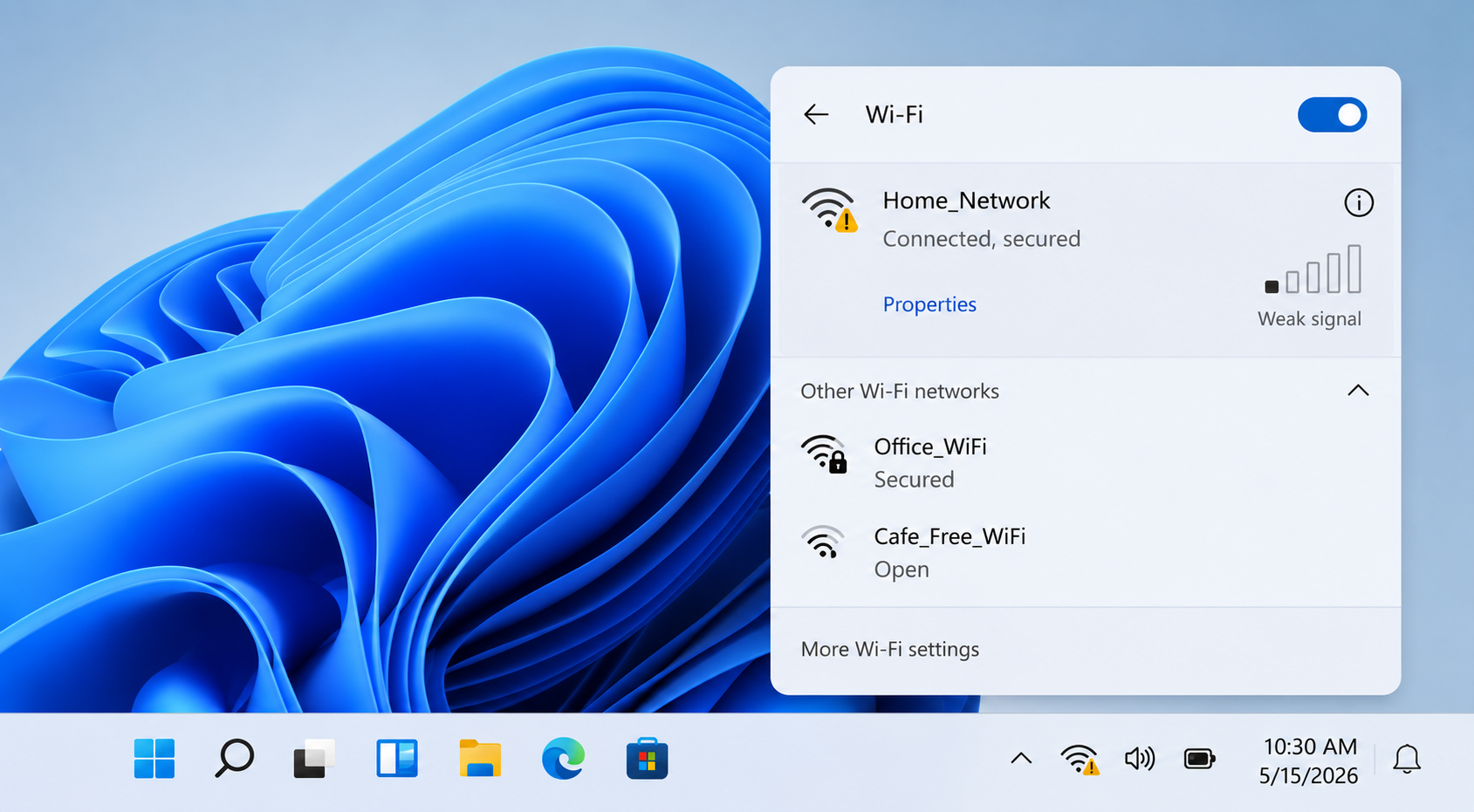
Weak Signal
Sign 04

Weak Signal

What you see

WiFi bars are low or connection keeps dropping.

What it may mean

The device may be too far from the router or blocked by walls, distance, or interference.

Visual Learning Steps

Basic places users usually check.

These steps explain where WiFi information usually appears and what each screen area represents.

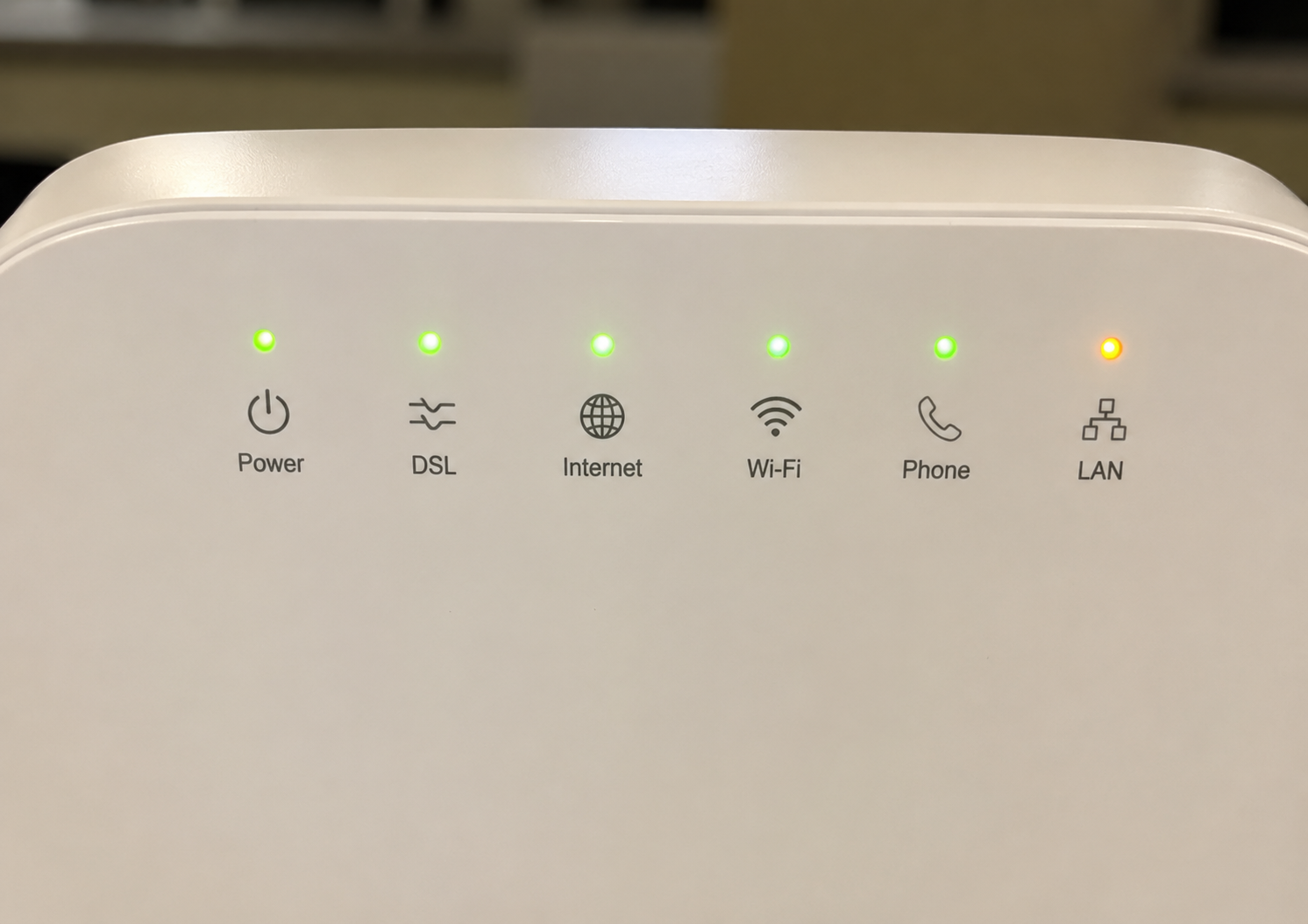
Check Router Lights
01

Check Router Lights

Router lights usually show power, internet, WiFi, and connection activity. If the internet light is off or blinking differently, the router may not have active internet access.

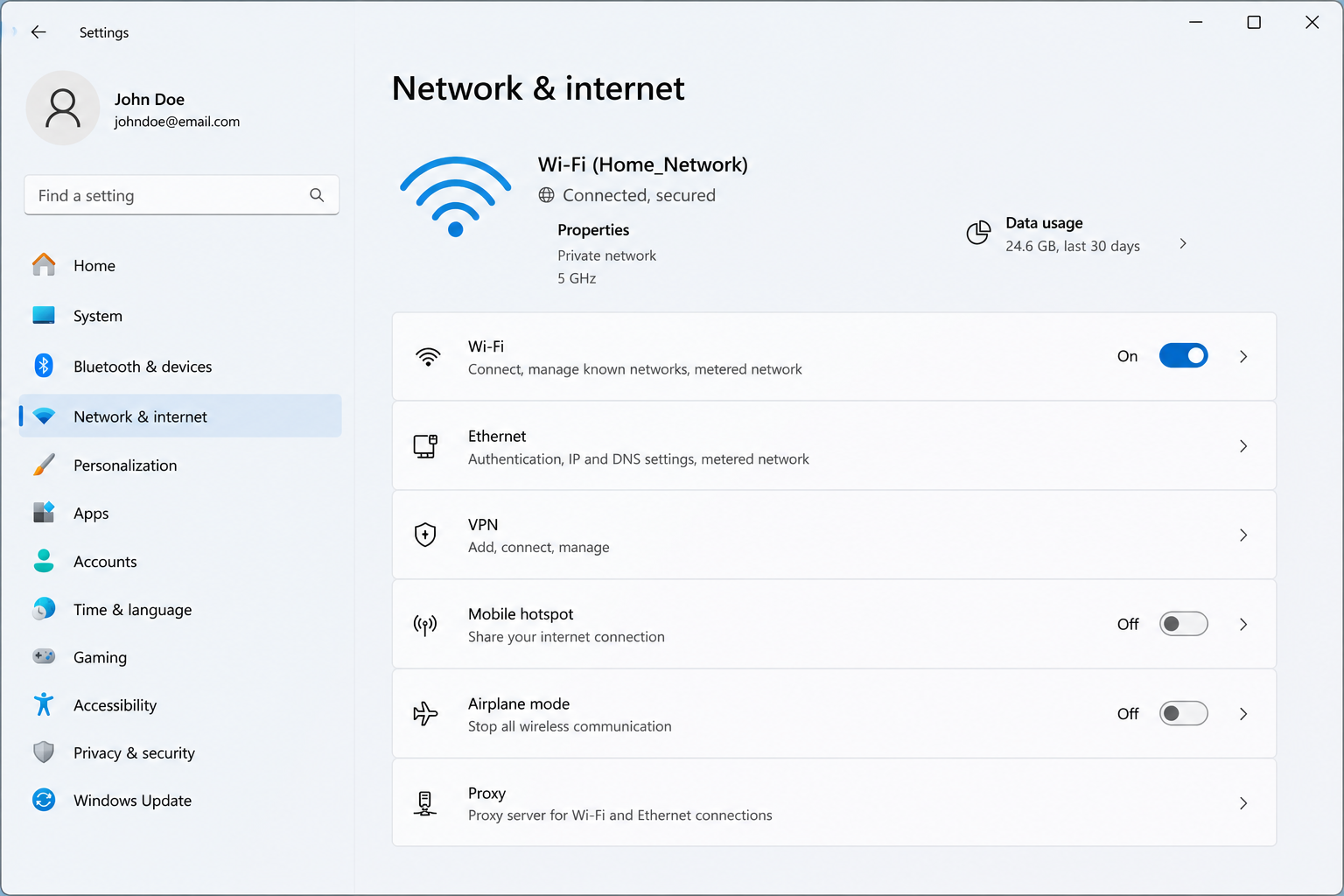
Open Network Settings
02

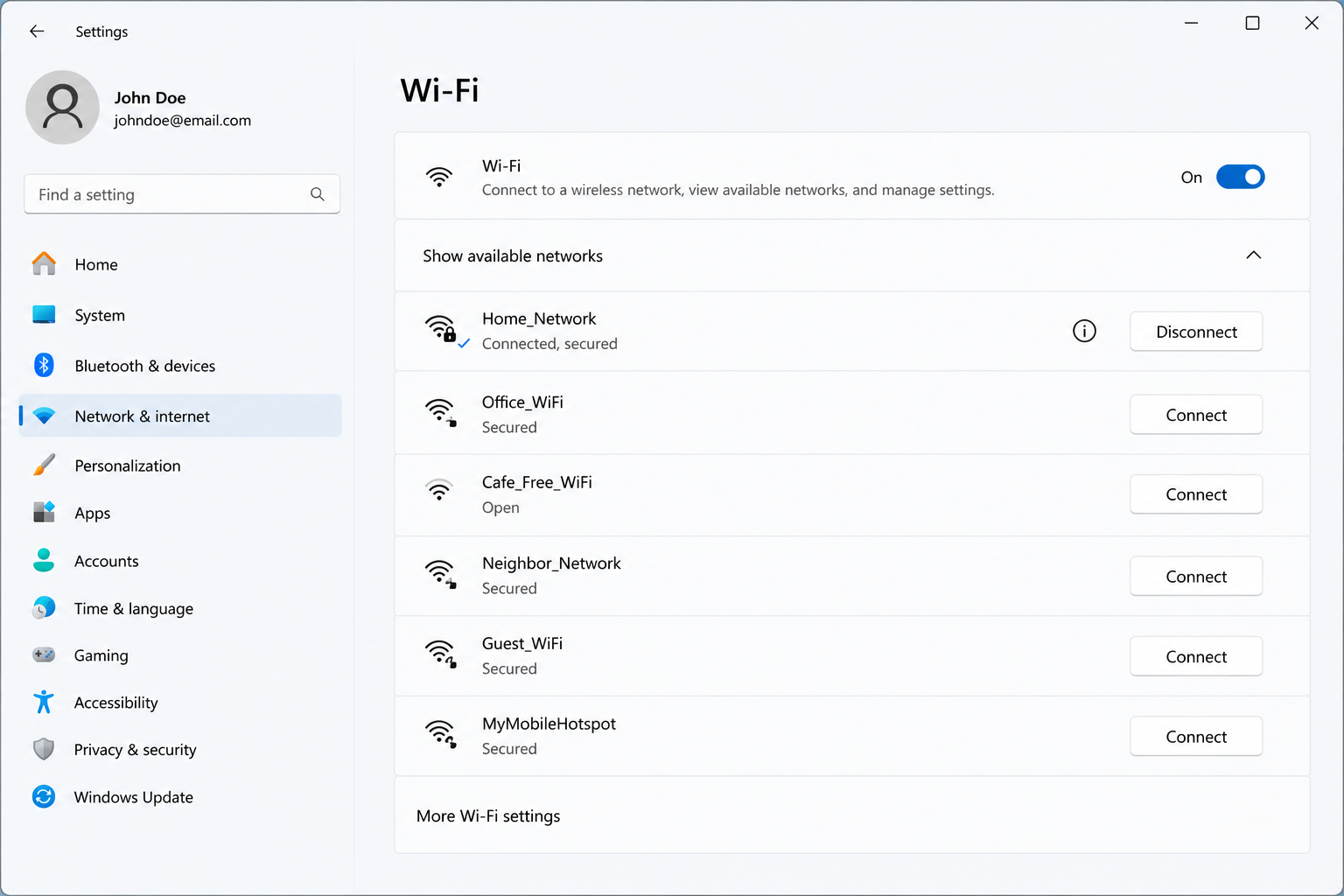
Open Network Settings

Win network settings show whether WiFi is enabled, which network is connected, and whether the device reports internet access.

View Available Networks
03

View Available Networks

The WiFi network list helps users check whether nearby networks are visible and whether the correct network name appears.

Check Adapter Status
04

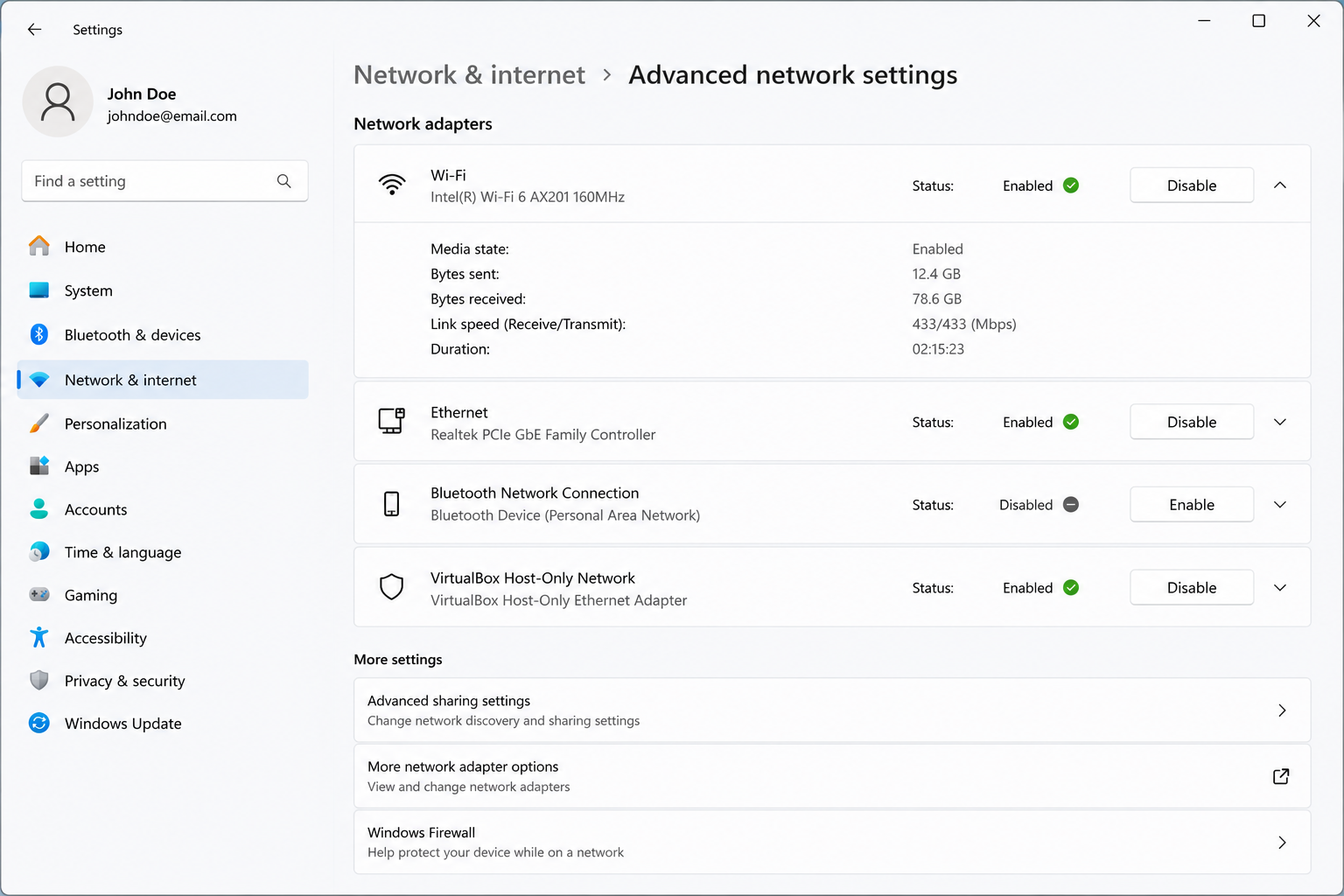
Check Adapter Status

The adapter area shows whether the wireless device is enabled, disabled, missing, or not responding as expected.

Quick Reading Table

Common WiFi signs and where to look.

01

WiFi connected but no internet

Router internet light, modem, ISP status, network settings

02

WiFi name not visible

WiFi toggle, airplane mode, adapter status, router broadcast

03

Password is rejected

Correct network name, updated password, saved network settings

04

Connection keeps dropping

Signal strength, distance, router placement, device load

05

Slow WiFi speed

Number of devices, router location, background downloads, signal quality

Common Questions

WiFi guide questions.

Simple answers about common WiFi signs, router behavior, and network concepts.

01 Why does WiFi show connected but no internet?

+

It usually means the device is connected to the router, but the router may not currently have active internet access.

02 Why does my WiFi name disappear?

+

The router may not be broadcasting, WiFi may be turned off, or the wireless adapter may not be active.

03 Why is WiFi slow even when connected?

+

Slow speed can relate to distance, weak signal, too many connected devices, background downloads, or router placement.

04 What does a yellow warning icon mean?

+

A warning icon usually indicates limited or no internet access even though a network connection exists.

05 Is this guide for learning only?

+

Yes. This page explains common WiFi screens and concepts for educational reading.

Continue Learning

Explore more learning guides.

Read more educational guides about printer learning, email basics, PC performance, and Win update concepts.