PC Performance Learning

Computer running slow? Learn what to check.

Understand slow startup, high CPU, memory load, low storage, frozen apps, overheating, and where drivers can affect PC performance.

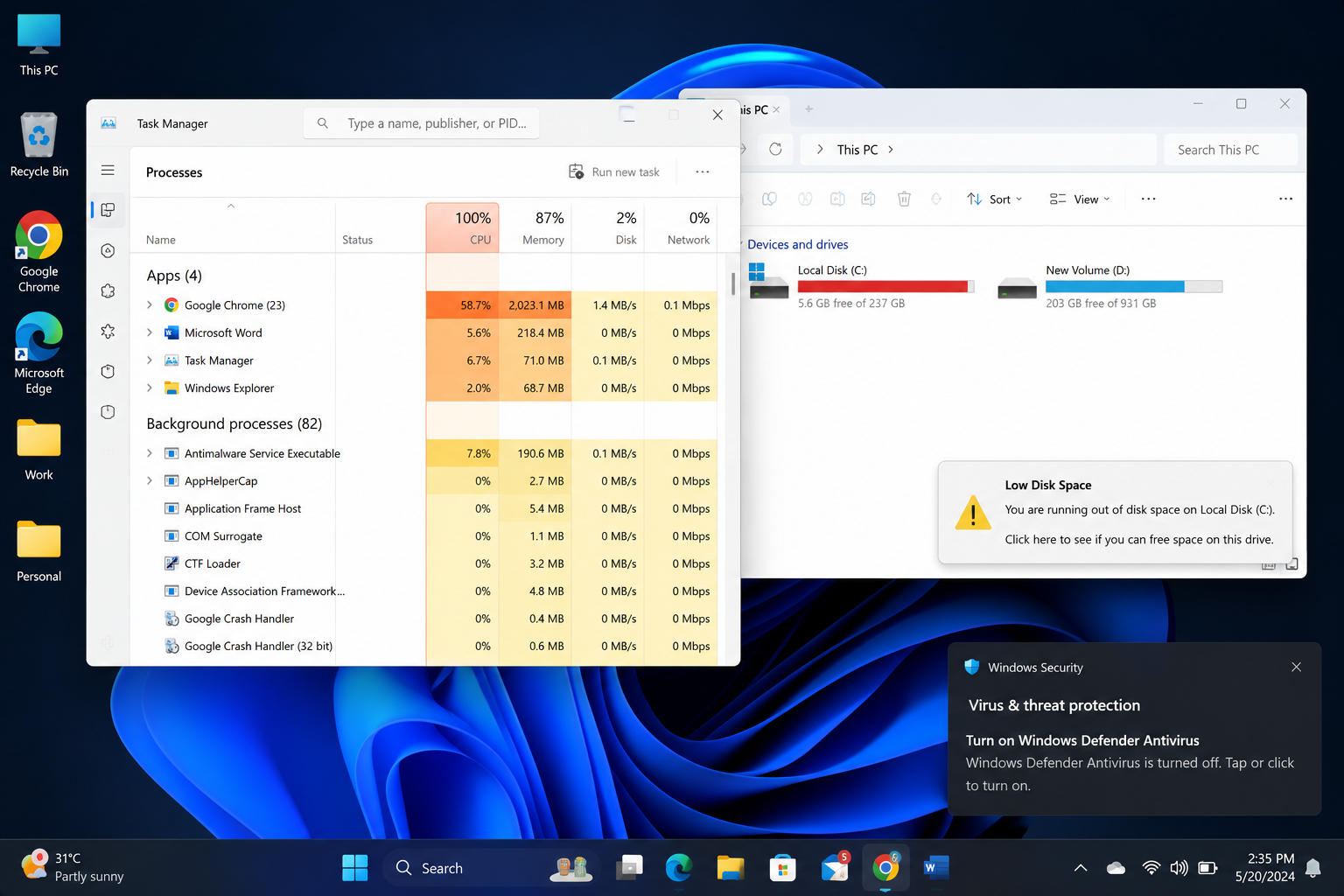
PC performance overview
What Users May See

Common slow computer signs and where to check.

Match the screen behavior with possible causes. Some issues are related to apps, storage, memory, updates, heat, and sometimes drivers.

Slow Startup
Sign 01

Slow Startup

What you see

Computer takes a long time to reach the desktop.

What it may mean

Many startup apps, disk activity, or pending updates may slow boot time.

Where to check

Startup apps, Task Manager, Win updates

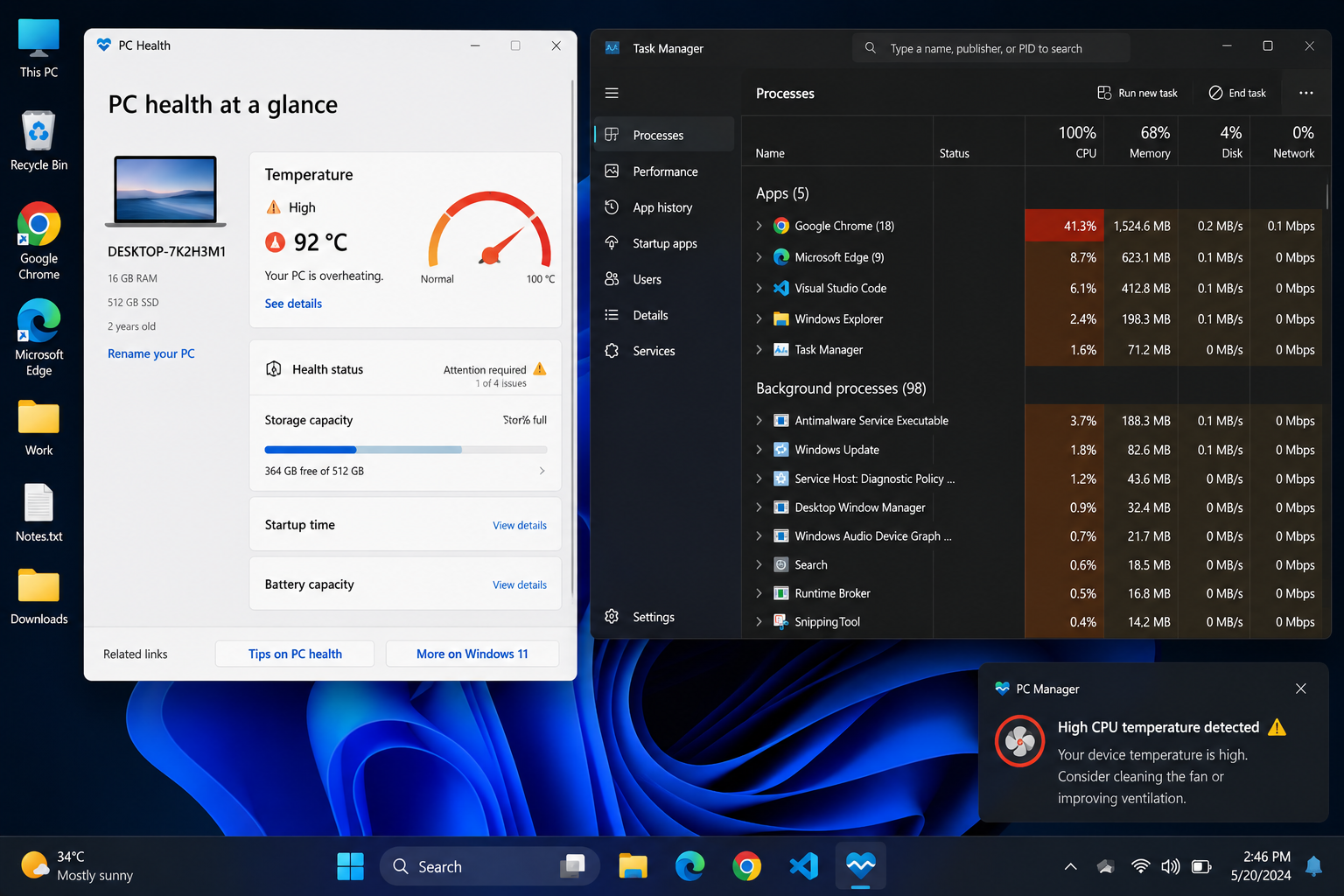
High CPU Usage
Sign 02

High CPU Usage

What you see

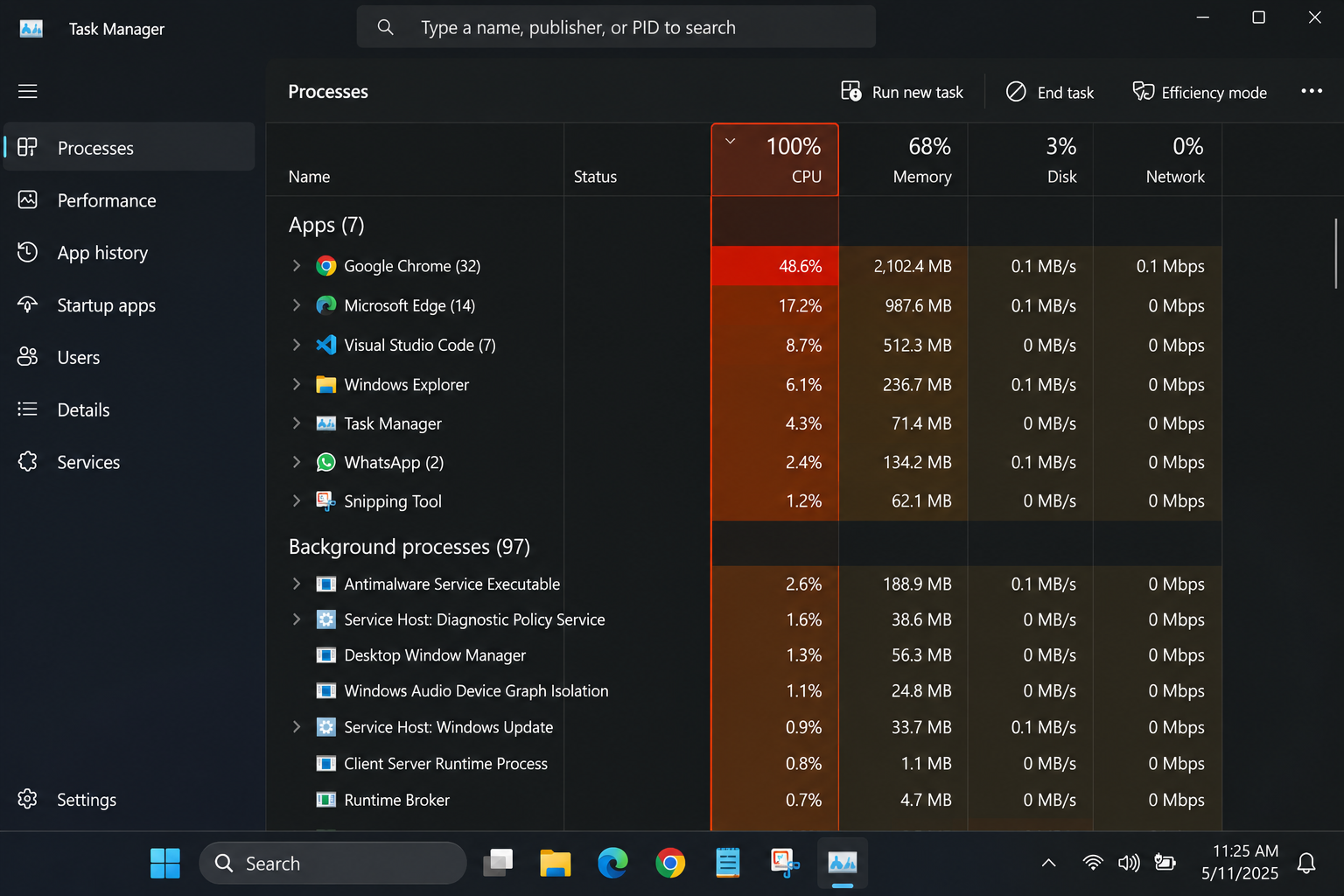
Task Manager shows CPU usage near 90% or 100%.

What it may mean

One or more apps, services, or driver-related processes may be using processor power.

Where to check

Processes tab, CPU column, background apps

High Memory Usage
Sign 03

High Memory Usage

What you see

Memory usage is high and apps respond slowly.

What it may mean

Too many apps or browser tabs may be open at the same time.

Where to check

Memory column, open apps, browser tabs

Low Disk Space
Sign 04

Low Disk Space

What you see

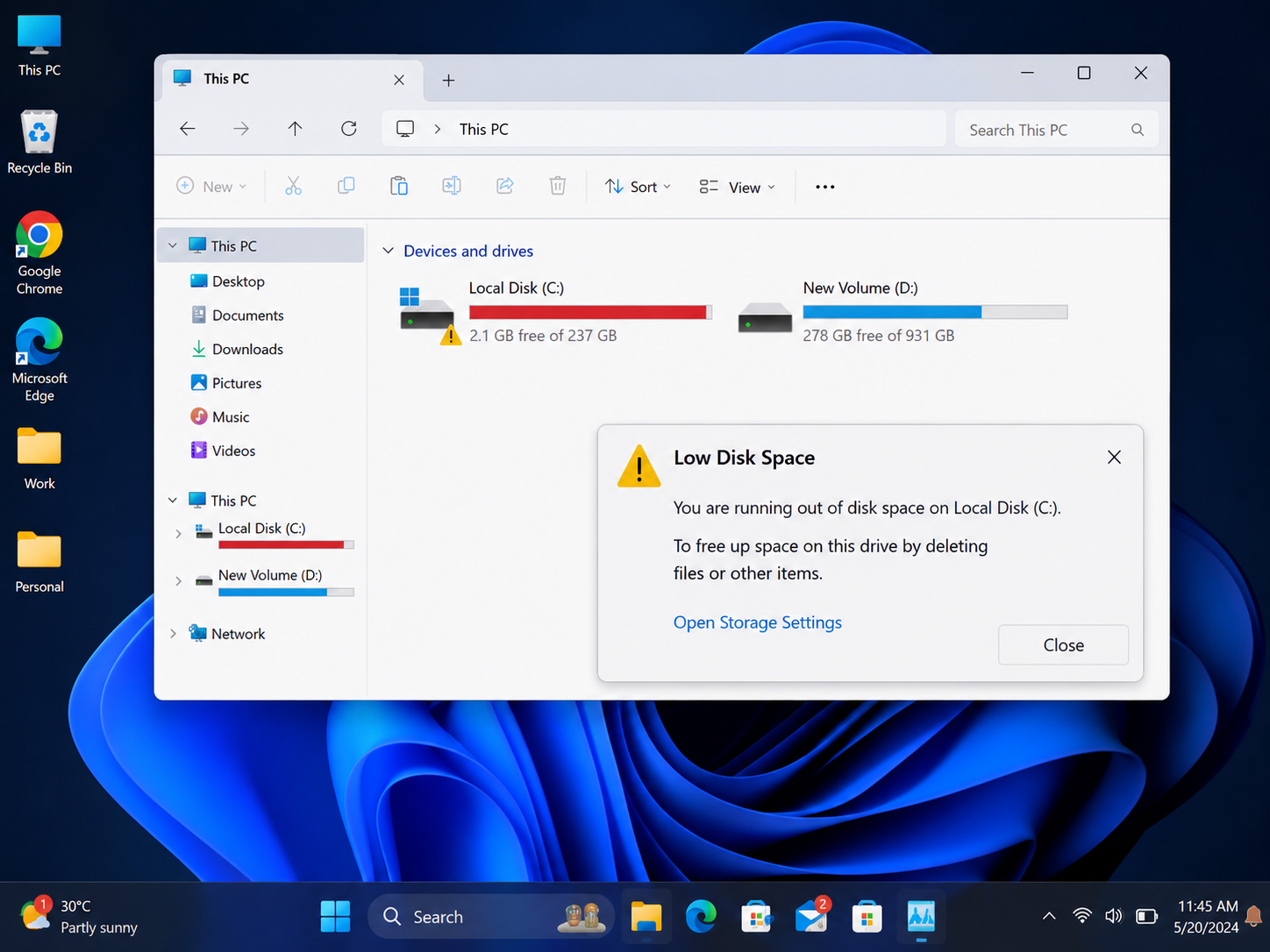
Storage warning says the drive is almost full.

What it may mean

Low storage can affect updates, temporary files, and system response.

Where to check

Storage settings, Downloads, temporary files

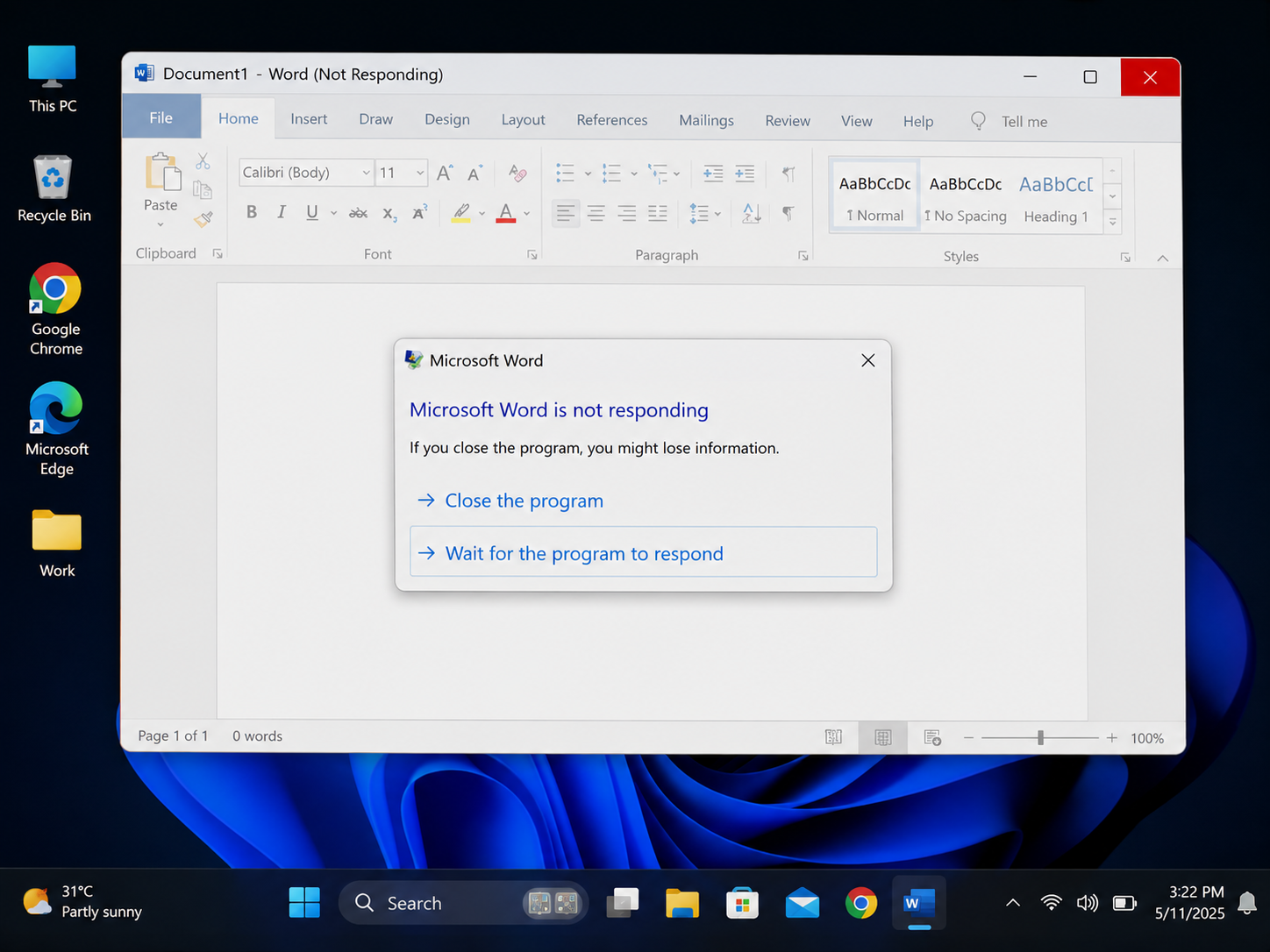
App Not Responding
Sign 05

App Not Responding

What you see

An app freezes and shows “Not Responding”.

What it may mean

The app may be waiting for memory, CPU, disk, graphics, or background tasks.

Where to check

Task Manager, app status, resource usage

Loud Fan Or Heat
Sign 06

Loud Fan Or Heat

What you see

Fan runs loudly or the laptop feels warm.

What it may mean

The system may be under heavy workload, blocked airflow, or graphics load.

Where to check

CPU usage, background apps, ventilation area

Driver Role

Can drivers affect PC performance?

Yes, drivers can affect performance when hardware and Win are not communicating correctly. But slow PC behavior can also come from startup apps, low storage, memory usage, updates, background tasks, or overheating.

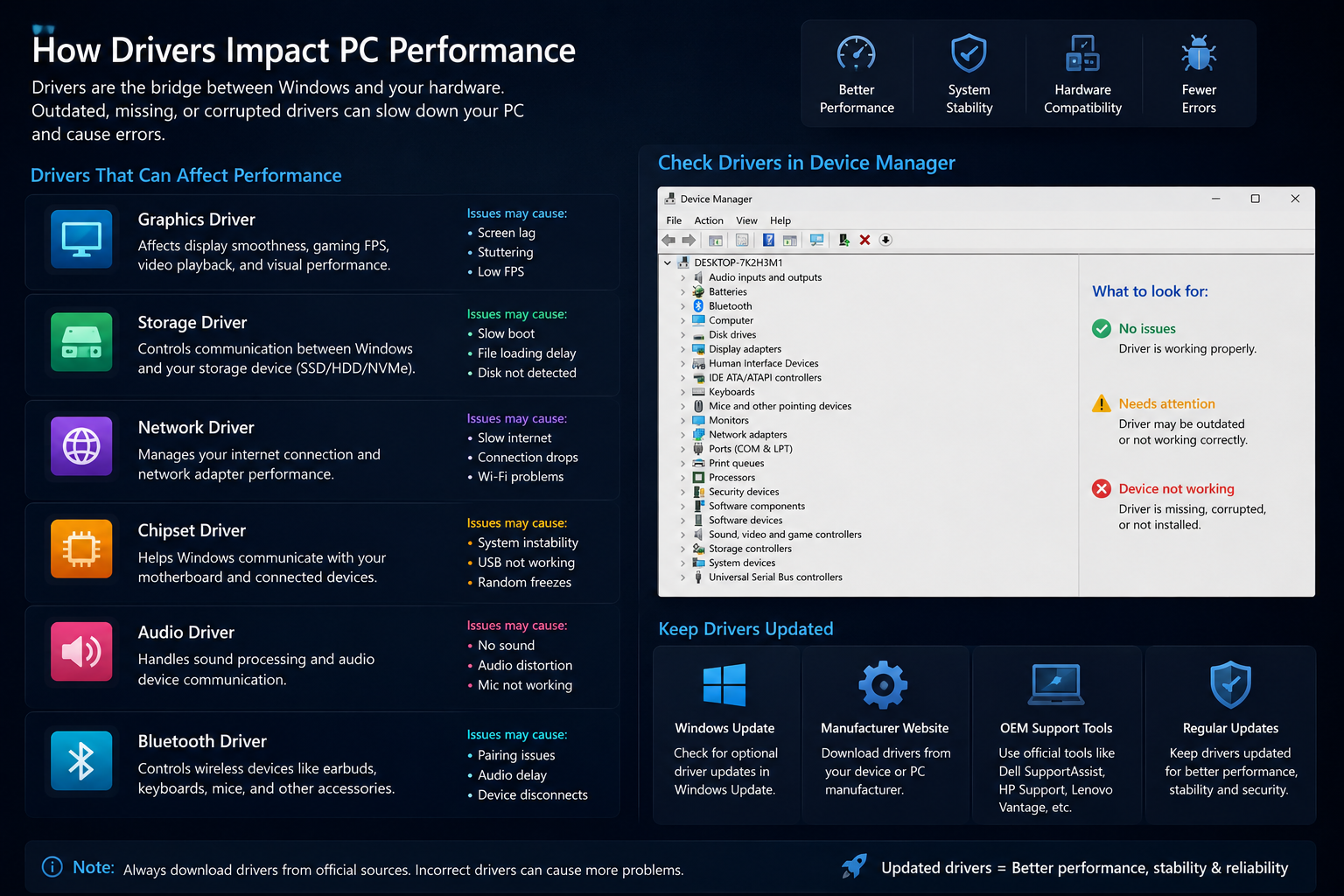
Driver impact on performance

Graphics Driver

Can affect screen lag, display flicker, video playback, animations, and graphics-heavy apps.

Where to check

Device Manager → Display adapters

Storage Driver

Can affect disk response, file loading, boot speed, and storage communication.

Where to check

Device Manager → Storage controllers

Network Driver

Can affect browsing speed, Wi-Fi drops, connection delay, or network adapter behavior.

Where to check

Device Manager → Network adapters

Chipset Driver

Helps Win coordinate motherboard, processor, USB, storage, and system communication.

Where to check

Device Manager → System devices

Audio Driver

Can affect sound delay, audio crackle, microphone behavior, or background audio services.

Where to check

Device Manager → Sound controllers

Bluetooth Driver

Can affect wireless accessories, pairing delay, keyboard, mouse, or headset response.

Where to check

Device Manager → Bluetooth

Driver Update Learning

Where drivers are usually checked in Win.

Drivers are commonly reviewed through Device Manager, Win Update, optional updates, or the device manufacturer’s official app or website.

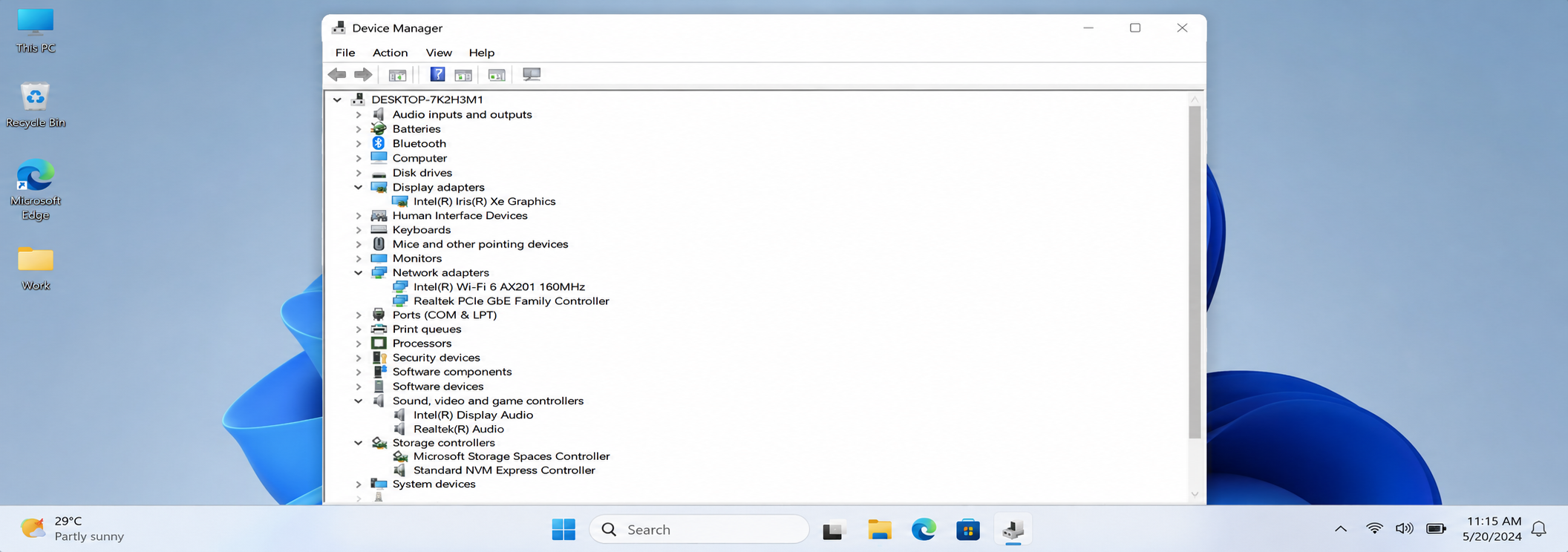
Open Device Manager
Step 01

Open Device Manager

Device Manager shows hardware categories such as display, network, storage, Bluetooth, audio, and system devices.

Choose Hardware Category
Step 02

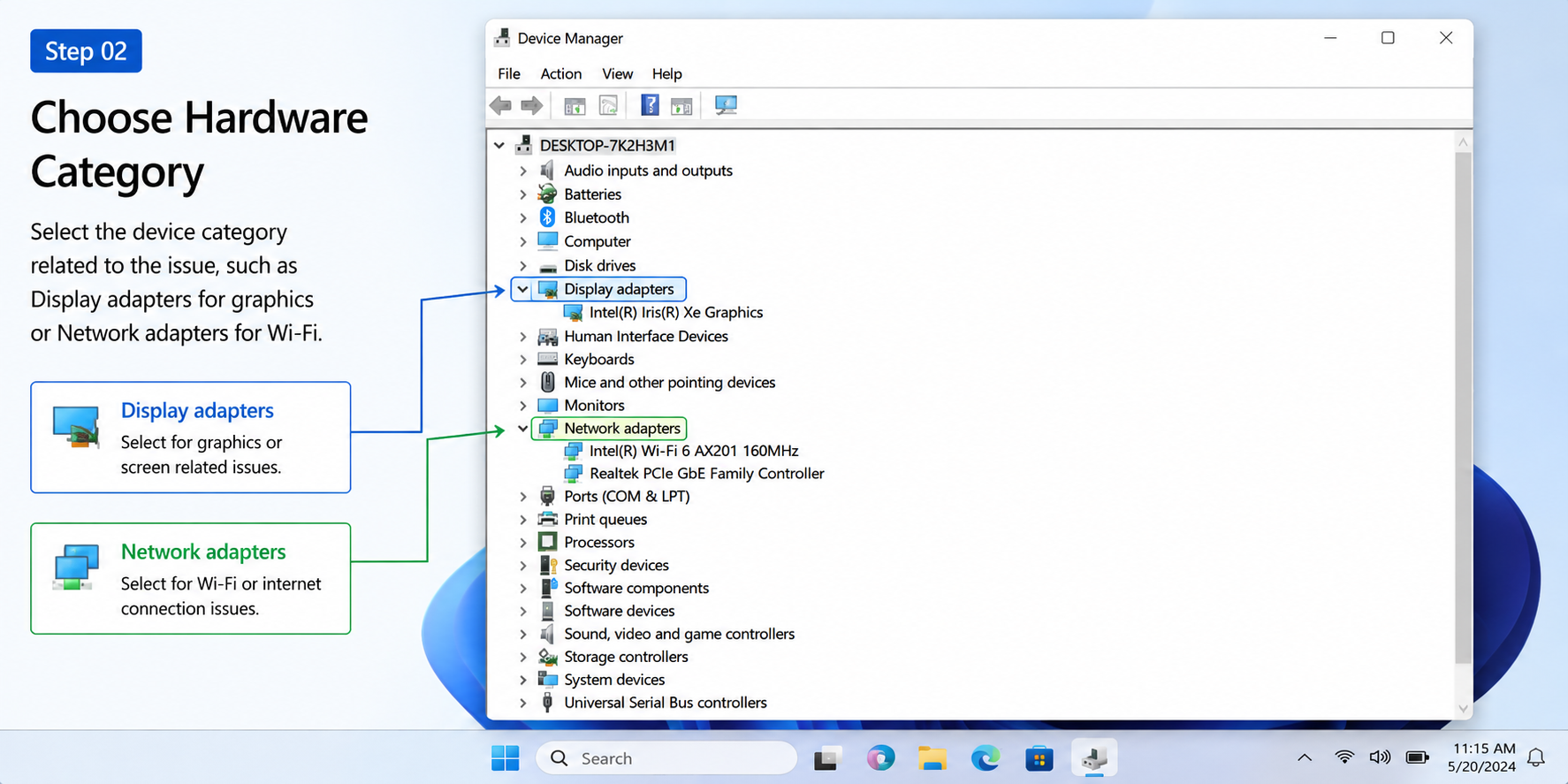
Choose Hardware Category

Select the device category related to the issue, such as Display adapters for graphics or Network adapters for Wi-Fi.

View Driver Details
Step 03

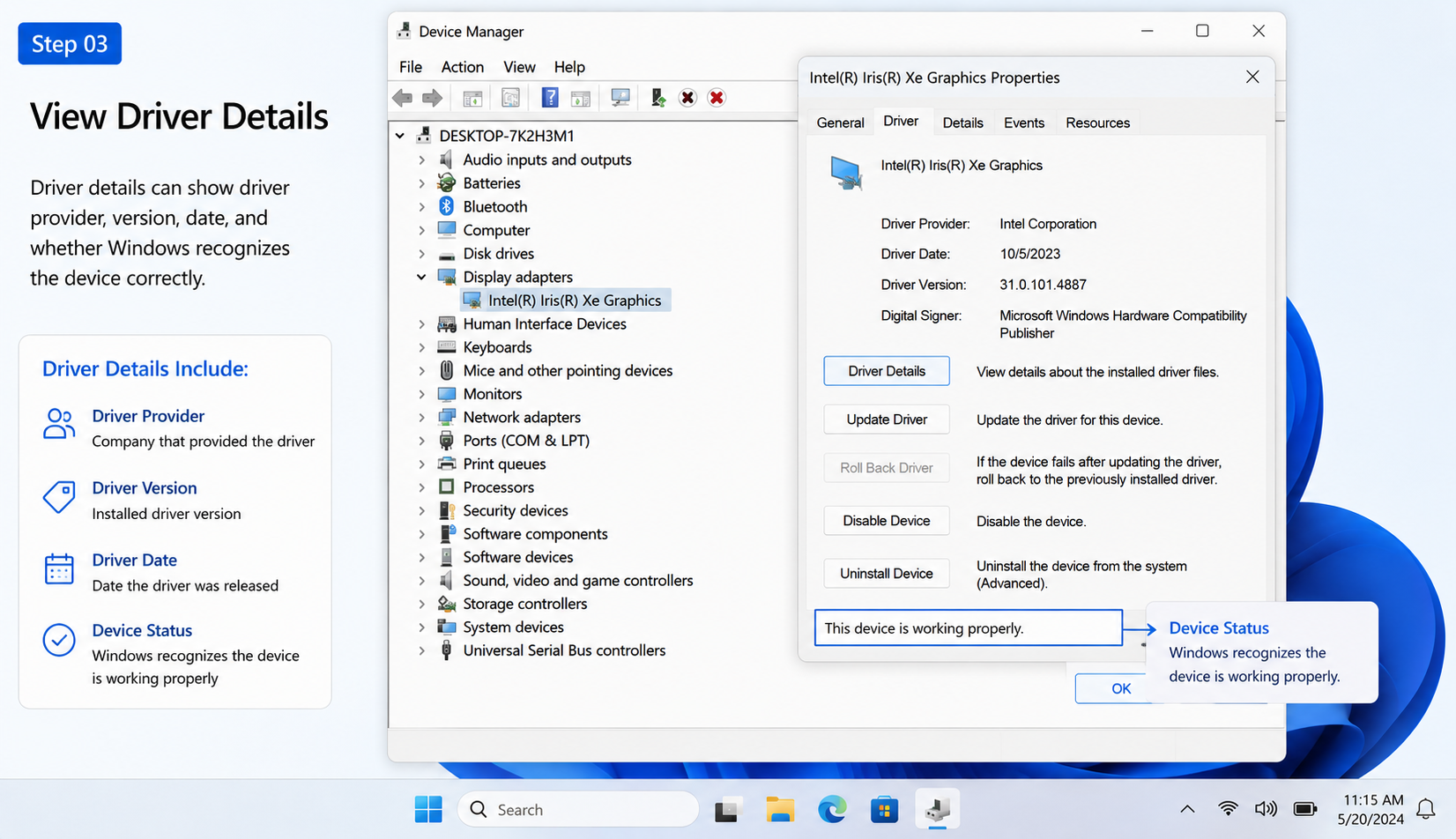
View Driver Details

Driver details can show driver provider, version, date, and whether Win recognizes the device correctly.

Use Update Driver Option
Step 04

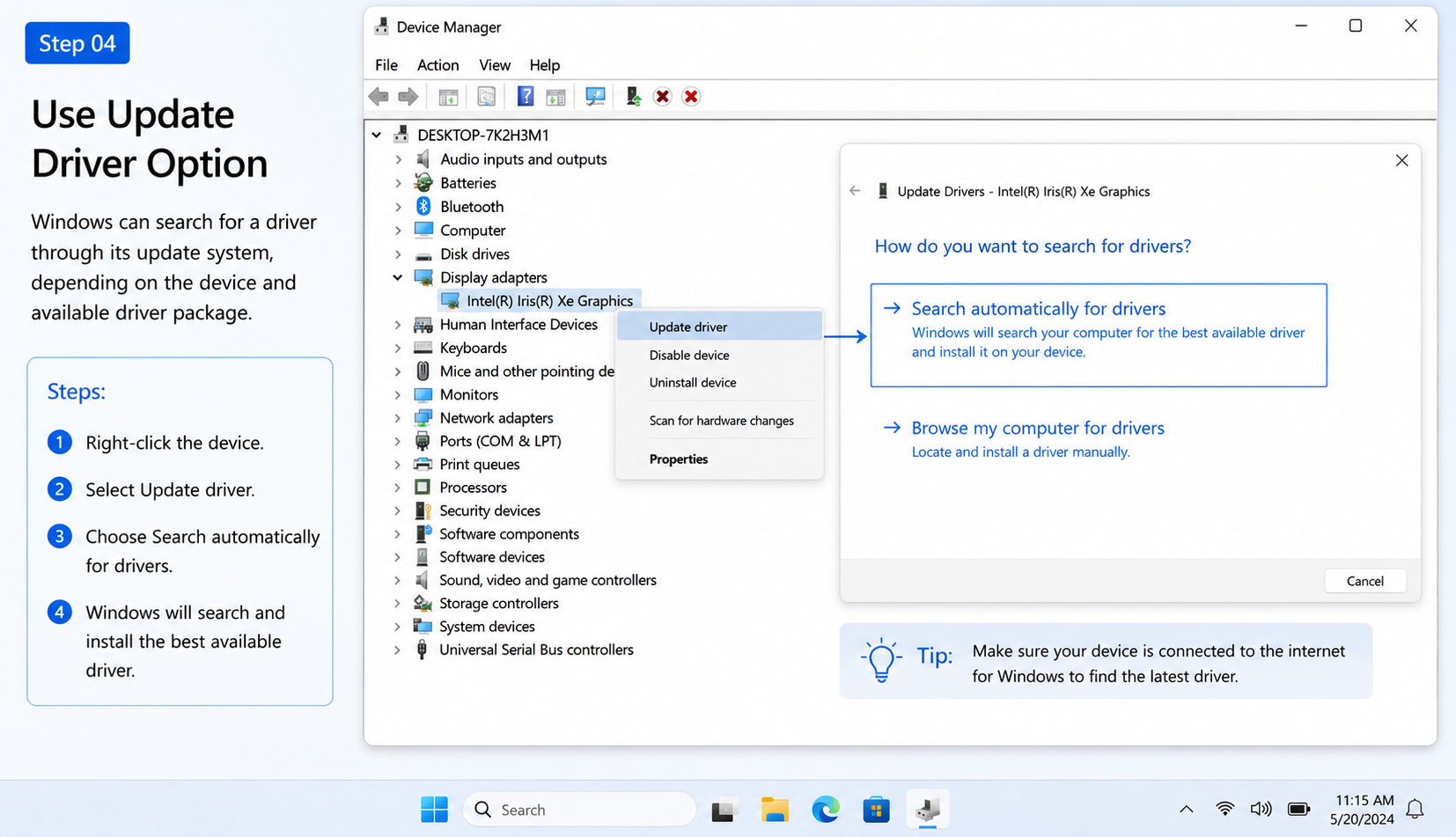
Use Update Driver Option

Win can search for a driver through its update system, depending on the device and available driver package.

Check Win Optional Updates
Step 05

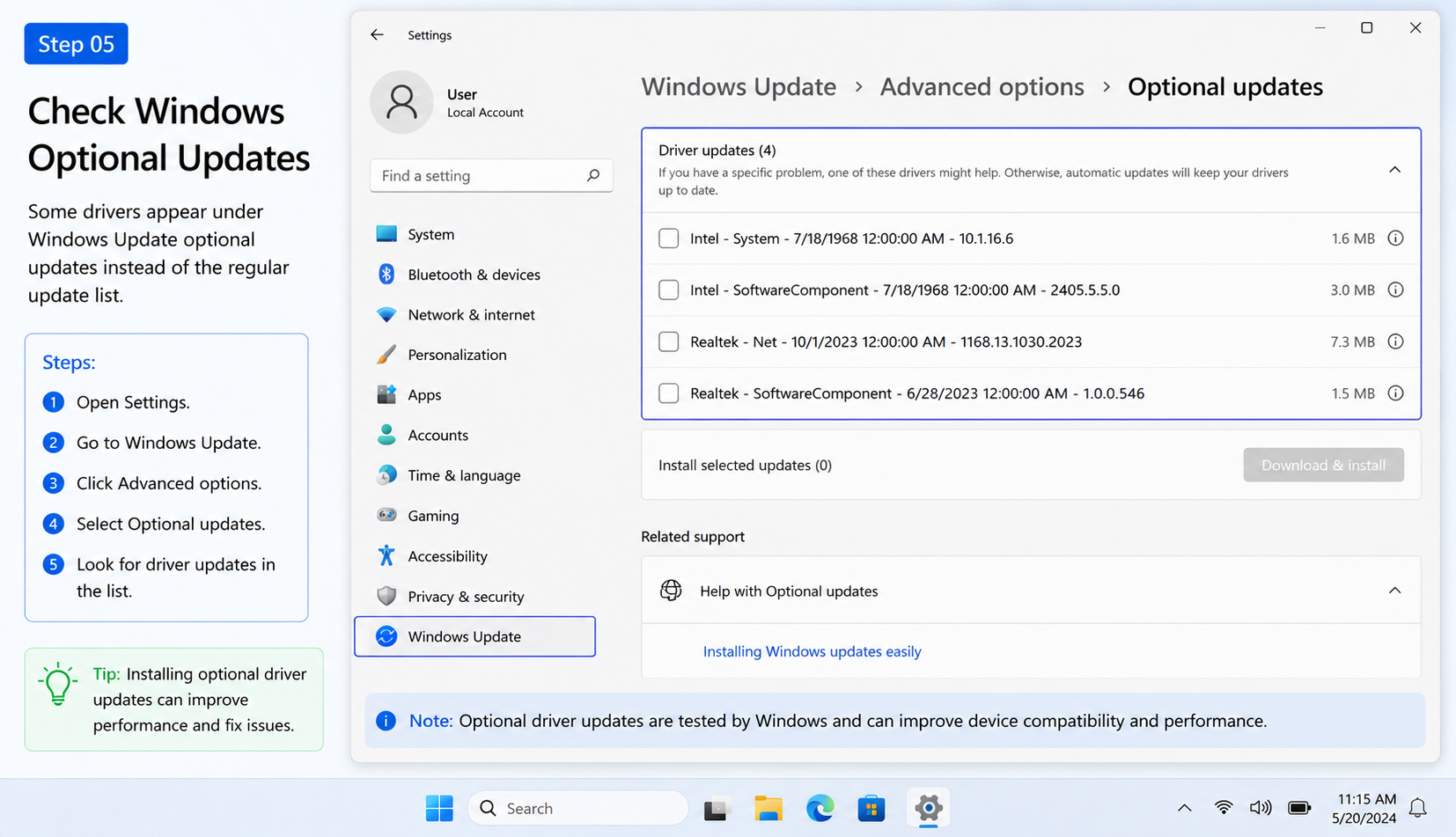
Check Win Optional Updates

Some drivers appear under Win Update optional updates instead of the regular update list.

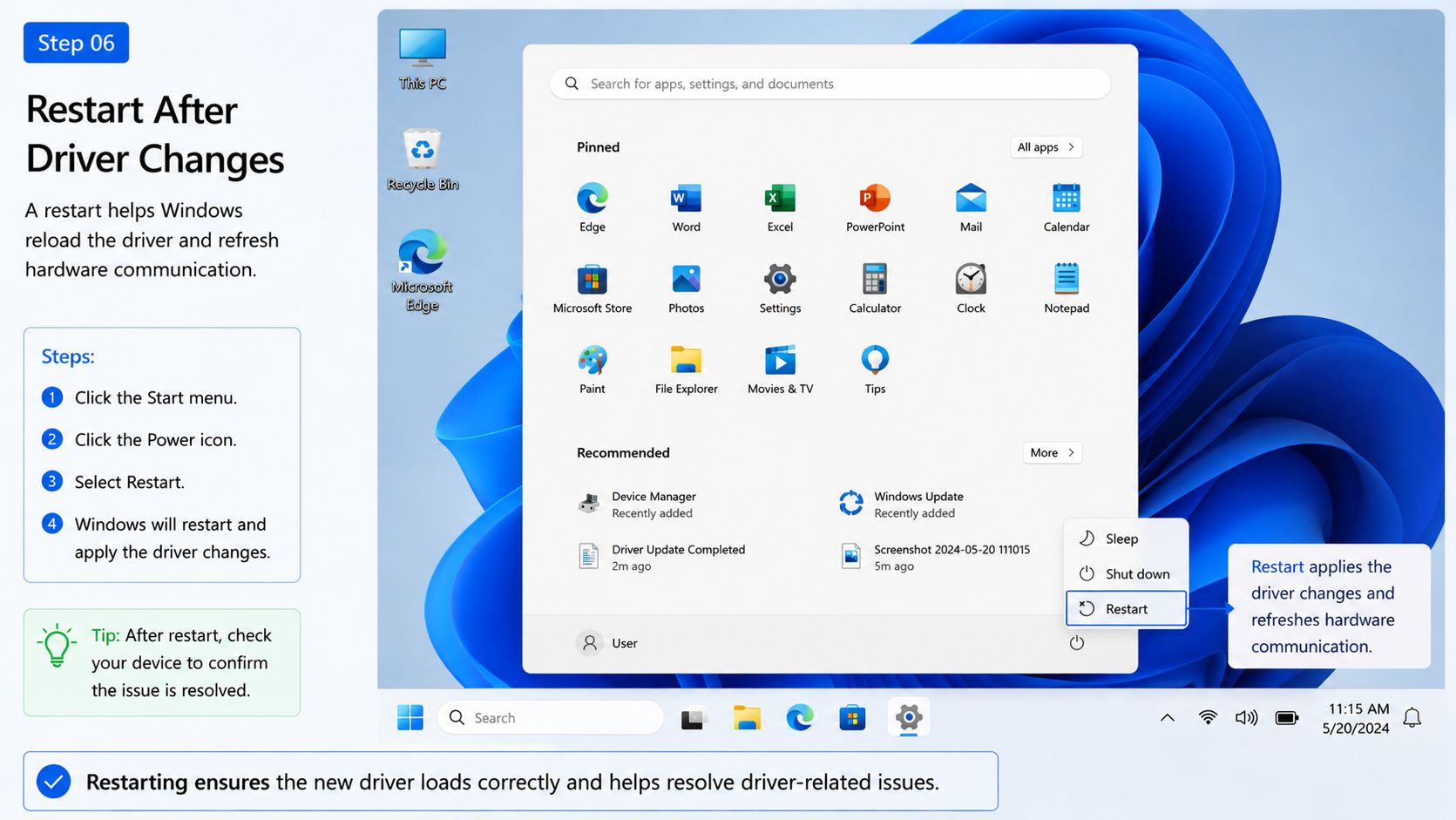
Restart After Driver Changes
Step 06

Restart After Driver Changes

A restart helps Win reload the driver and refresh hardware communication.

System Check Areas

Where users usually check performance.

Built-in system areas can show which app, service, or driver-related process is using CPU, memory, disk, startup, or background resources.

Task Manager

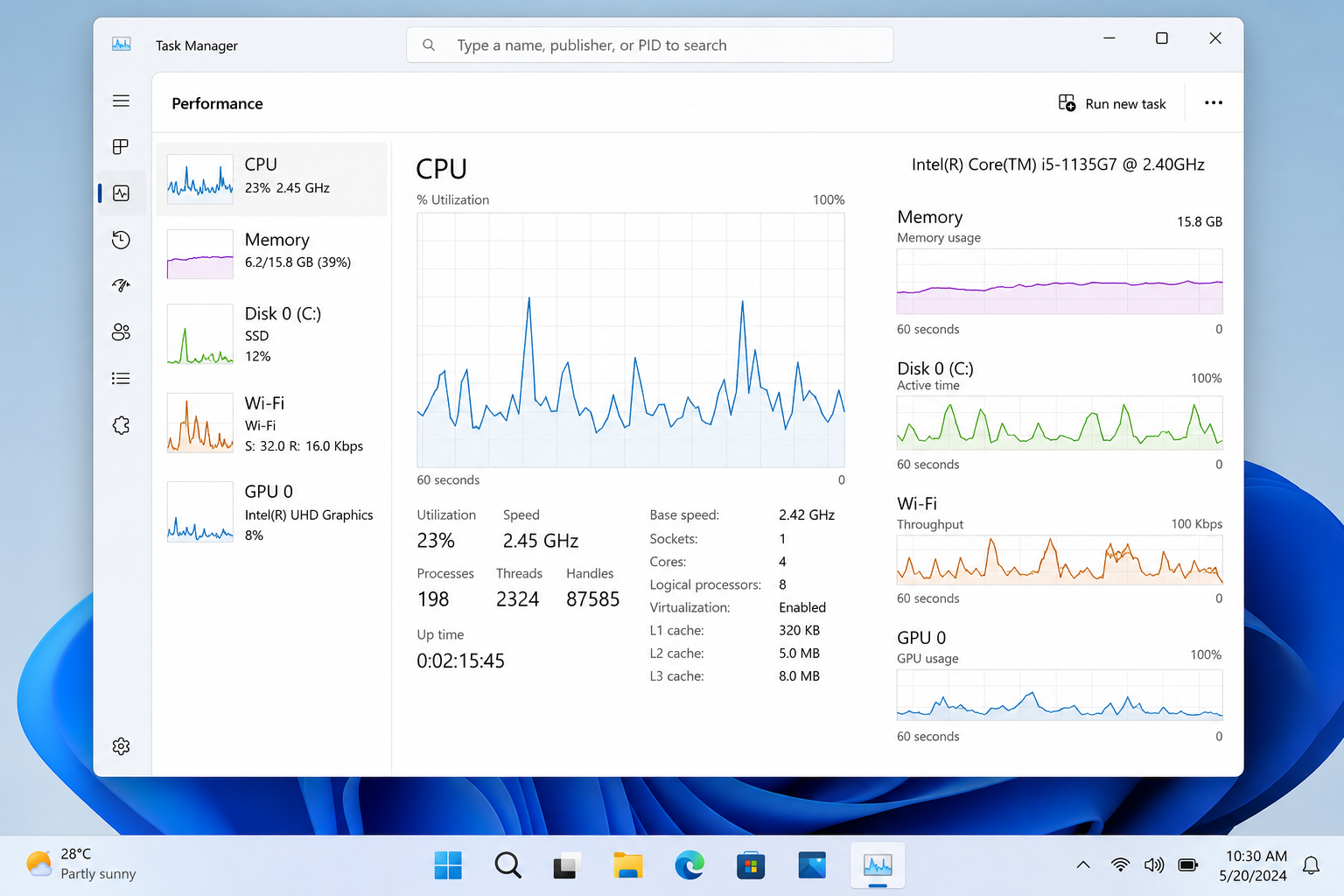
Shows CPU, memory, disk, startup apps, and active processes.

Storage Settings

Shows drive space, temporary files, downloads, and installed apps.

Device Manager

Shows driver categories, device status, and driver details.

Task Manager performance overview
Real Check Flow

A simple order to read performance screens.

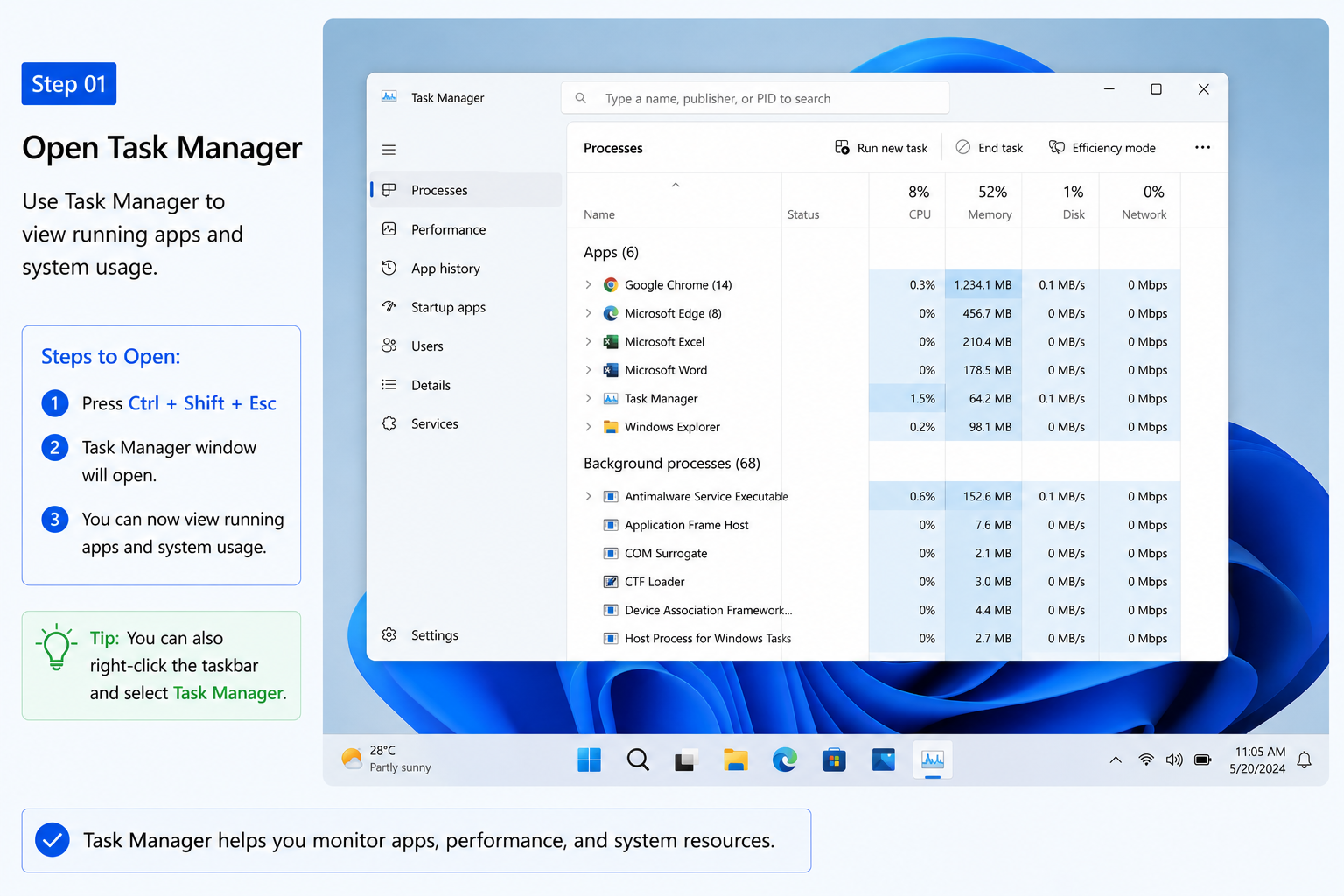
Open Task Manager
Step 01

Open Task Manager

Use Task Manager to view running apps and system usage.

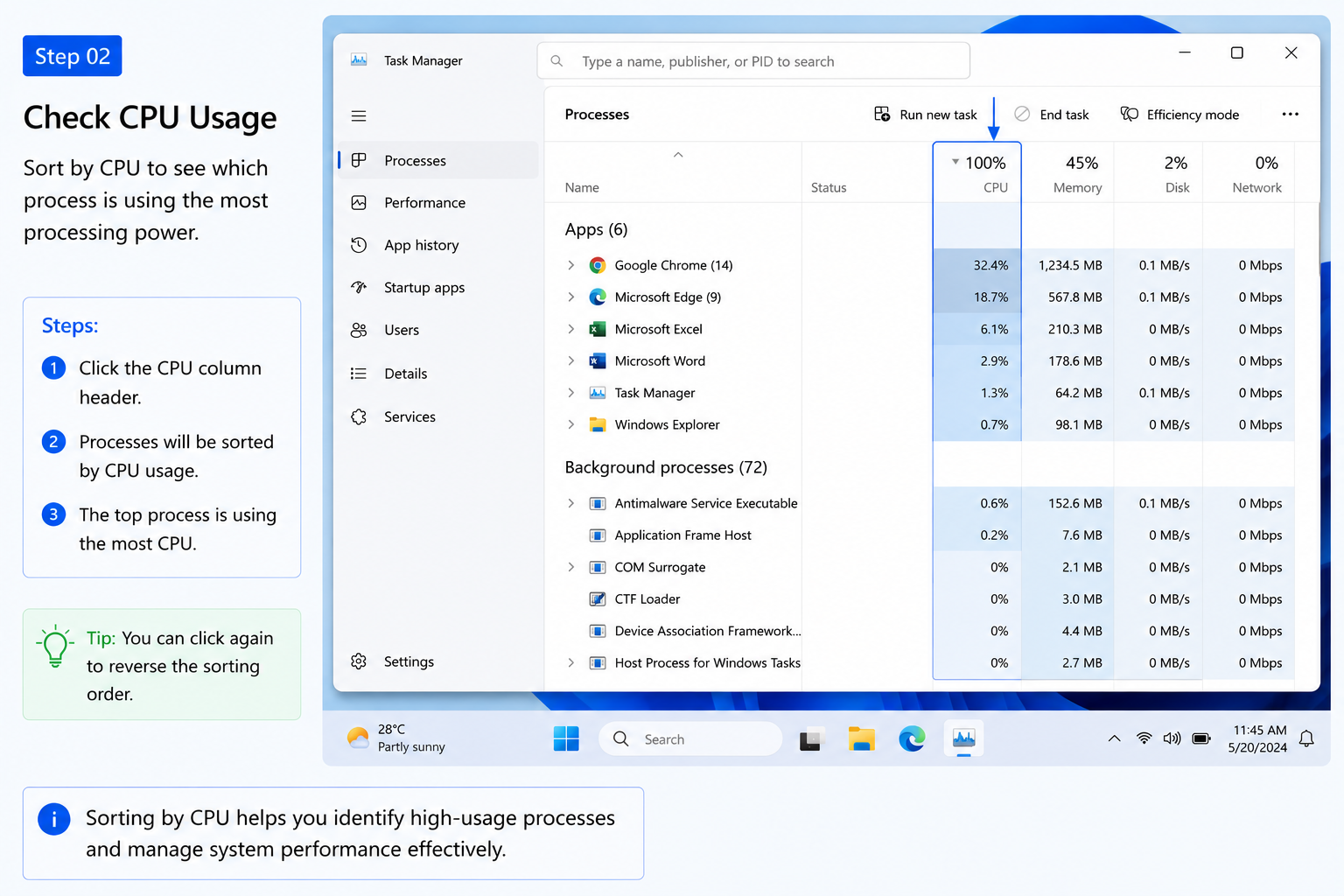
Check CPU Usage
Step 02

Check CPU Usage

Sort by CPU to see which process is using the most processing power.

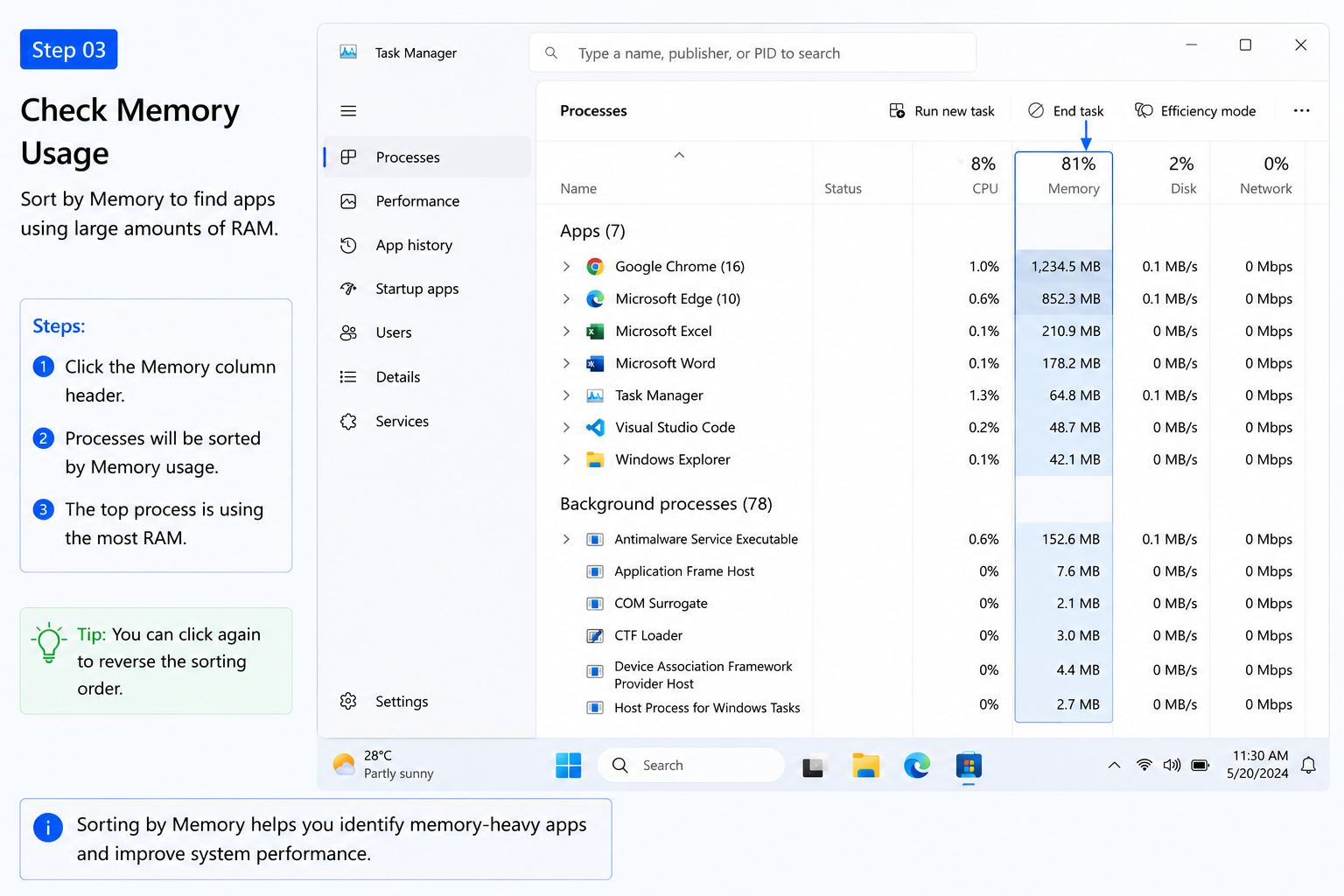
Check Memory Usage
Step 03

Check Memory Usage

Sort by Memory to find apps using large amounts of RAM.

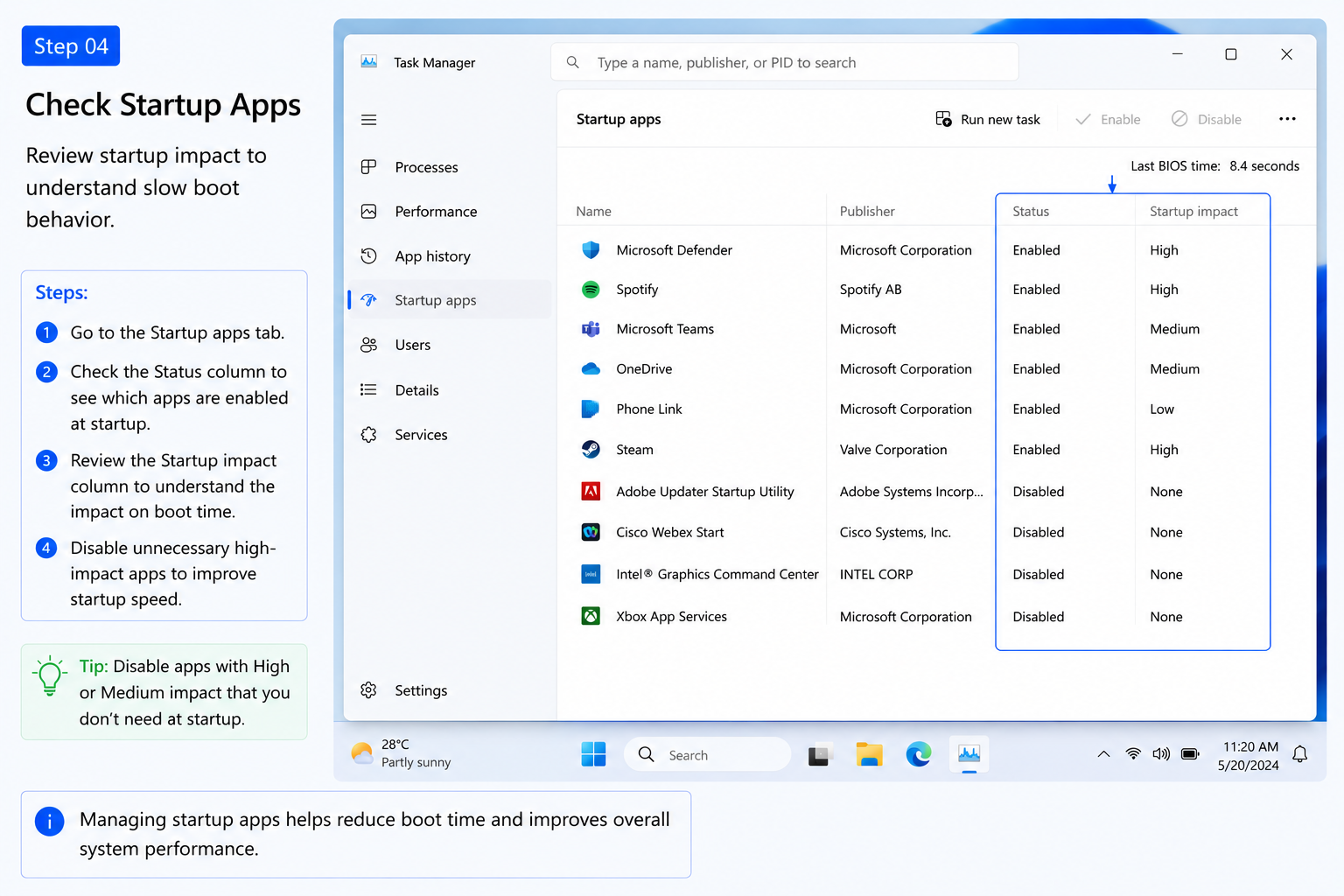
Check Startup Apps
Step 04

Check Startup Apps

Review startup impact to understand slow boot behavior.

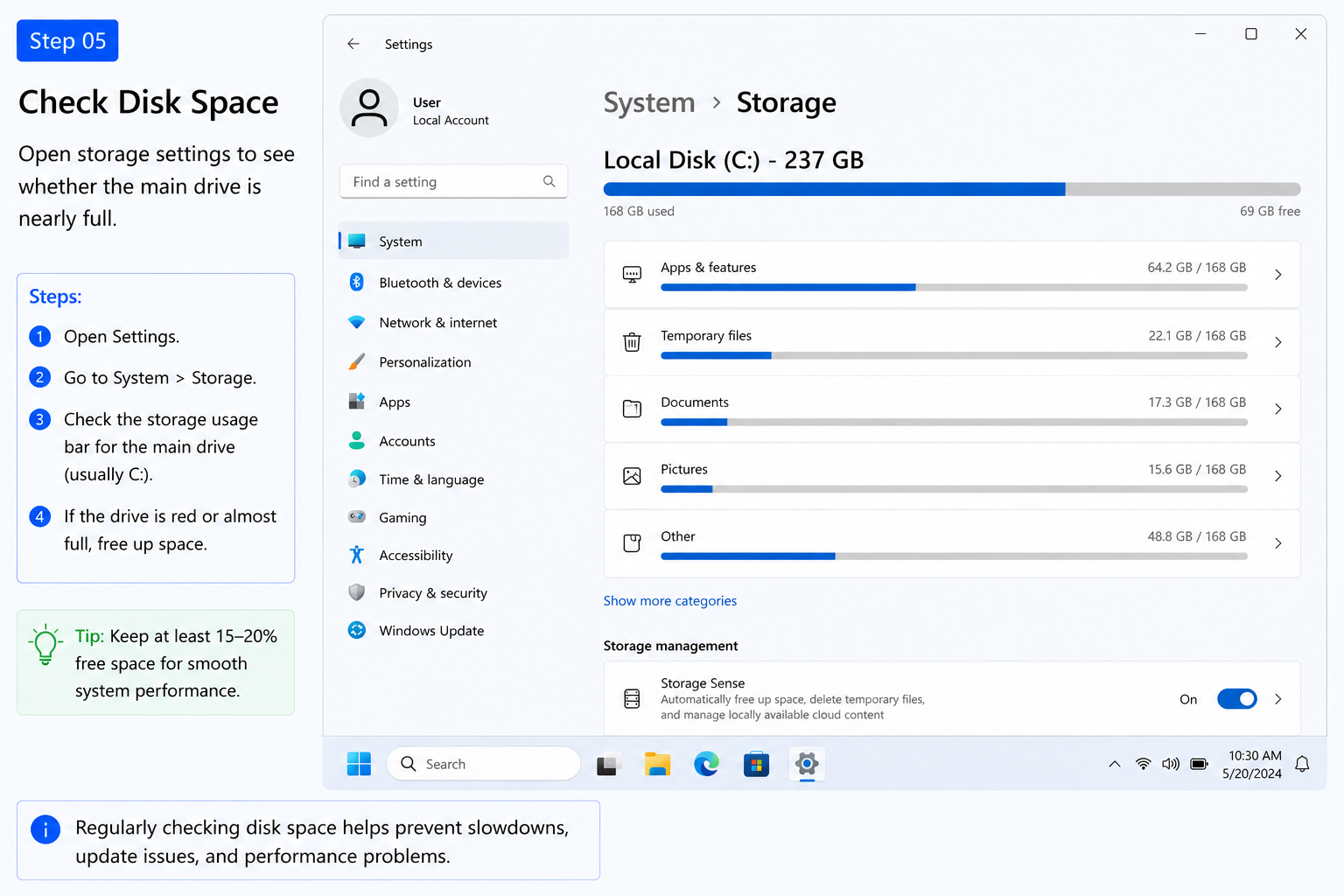
Check Disk Space
Step 05

Check Disk Space

Open storage settings to see whether the main drive is nearly full.

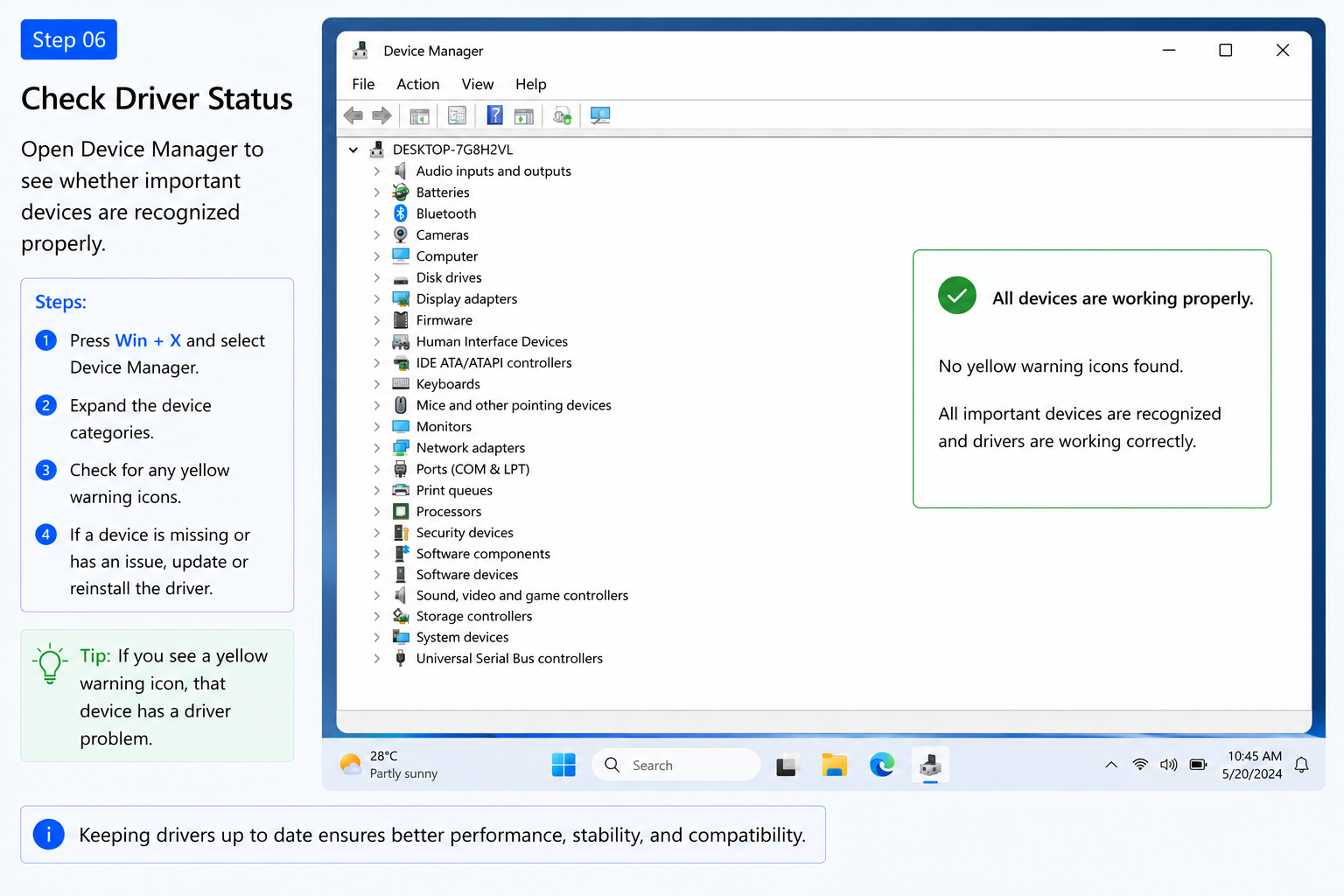
Check Driver Status
Step 06

Check Driver Status

Open Device Manager to see whether important devices are recognized properly.

Quick Reading Table

Performance signs and possible driver relation.

01

100% CPU

Heavy app processing, background tasks, or driver-related services

02

Display lag

Graphics driver, high CPU/GPU load, or heavy visual apps

03

Slow file loading

Low storage, disk activity, or storage controller driver

04

Wi-Fi drops

Router signal, network settings, or network adapter driver

05

Audio crackle

Audio driver, background load, or sound device communication

06

Long startup

Startup apps, background services, updates, or driver loading

Common Questions

PC performance and driver questions.

Simple answers about slow computers, Task Manager, storage, startup behavior, and driver-related performance concepts.

01 Can drivers make a PC slow?

+

Yes. A driver can affect performance when hardware communication is unstable, outdated, corrupted, or not working correctly.

02 Which drivers affect performance most?

+

Graphics, storage, chipset, network, audio, and Bluetooth drivers can affect different parts of system behavior.

03 Where can I check drivers?

+

Device Manager shows driver categories and device status. Win Update may also show optional driver updates.

04 Should every driver be updated manually?

+

Not always. Drivers should usually be updated from Win Update or the official device manufacturer source when needed.

05 Can graphics drivers cause lag?

+

Yes. Graphics drivers can affect display lag, screen flicker, video playback, and visual performance.

06 Can network drivers slow browsing?

+

Network drivers can affect Wi-Fi drops, slow browsing, or adapter communication, but router signal and internet service can also matter.

07 Can storage drivers affect boot speed?

+

Storage driver or disk issues can affect file loading, disk response, and startup behavior.

08 What is chipset driver role?

+

Chipset drivers help Win coordinate motherboard, processor, USB, storage, and system communication.

09 Why does Task Manager show high usage?

+

High usage can come from apps, updates, background tasks, scans, or driver-related services.

10 Is this guide for learning only?

+

Yes. This page explains common PC performance and driver concepts for educational reading.

Continue Learning

Explore more learning guides.

Read more educational guides about printer learning, router networking, email basics, and Win update concepts.