Printer connection guide

Understand printer offline and driver missing messages.

This guide explains common printer connection screens, driver messages, print queue behavior, USB detection, Wi-Fi printer search, and the usual flow between a computer and printer.

Printer offline control panel visual

What this guide explains

Printer offline status, missing driver messages, stuck print jobs, USB detection, wireless printer search, and printer setup screens.

Educational reading only. No repair or support service.

Printer offline panel Driver missing panel Print queue stuck WiFi printer not found

What users usually see

Match the screen with the printer situation.

These examples explain common printer screens in a learning context, so readers can understand what the message usually points to before reading the detailed guide.

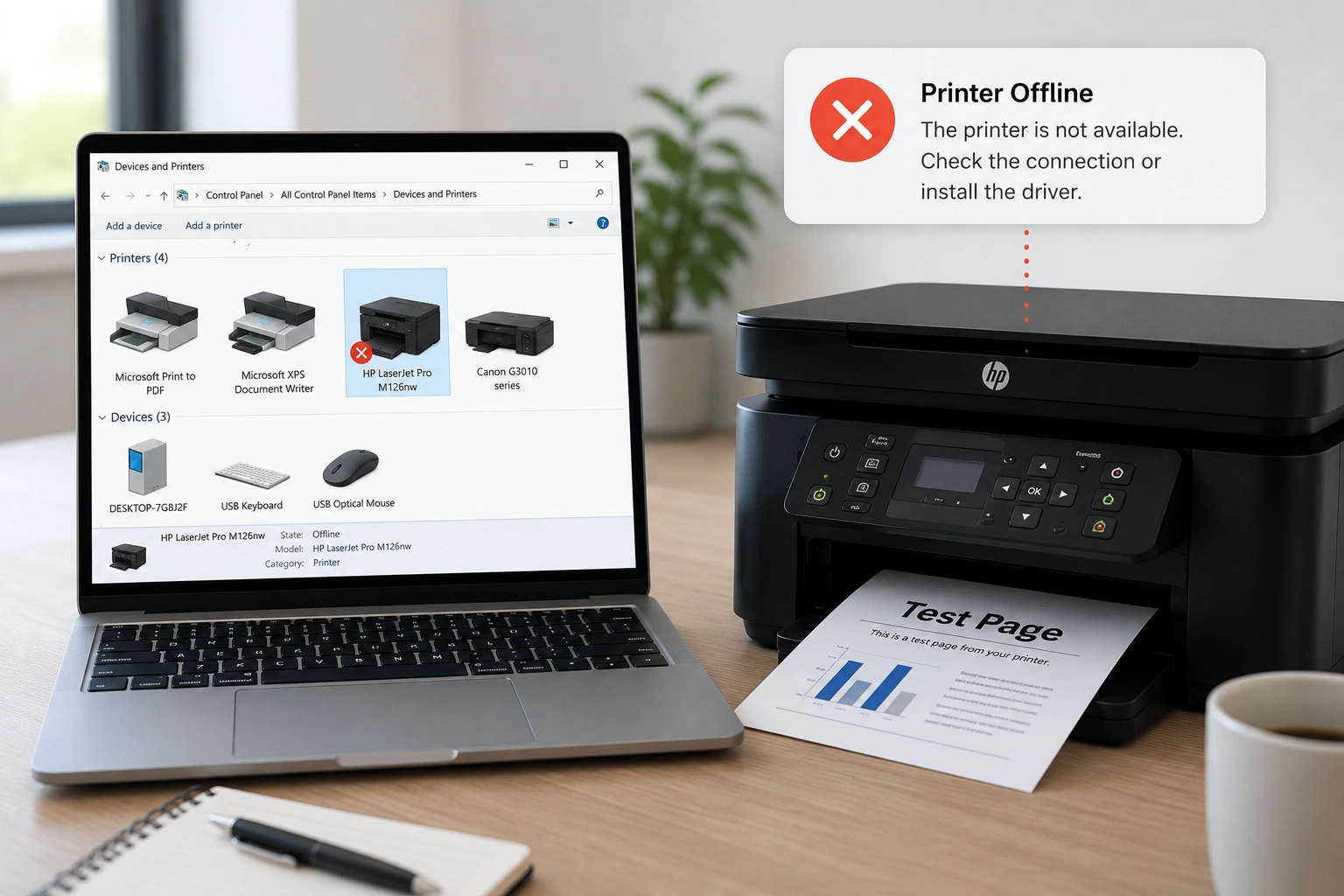
Printer Offline
Screen example 01

Printer Offline

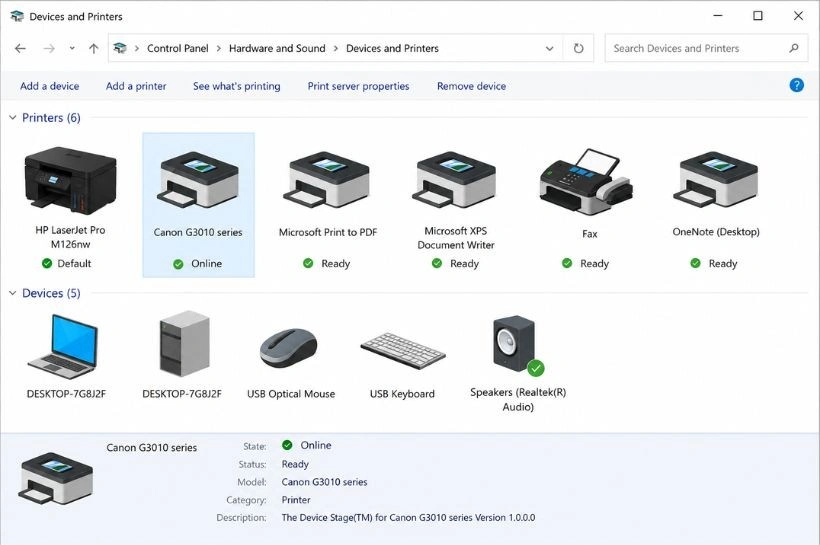
The printer appears in Devices & Printers, but the status says Offline. This usually means the computer can see the printer record, but the current communication path is not active.

Printer visible Offline status Connection path inactive
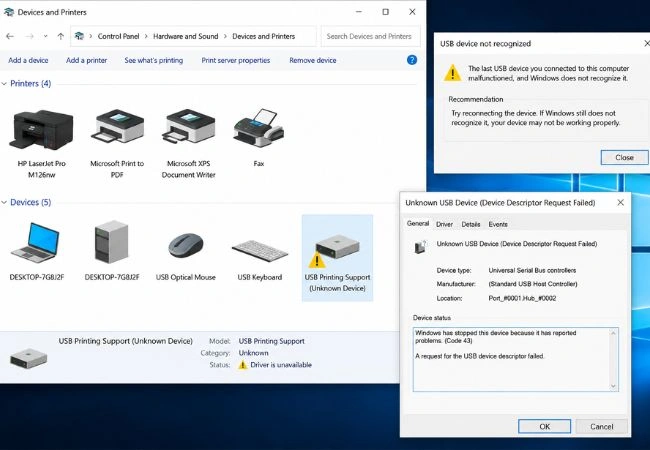
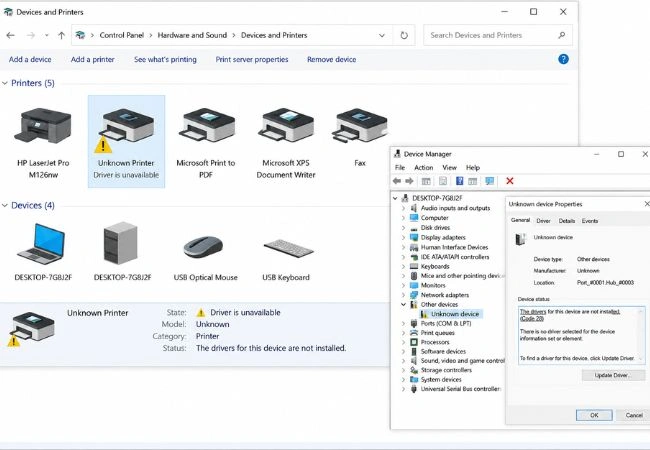
Driver Missing
Screen example 02

Driver Missing

The computer may show driver unavailable, unknown device, or a warning symbol. This means the system does not have the right software layer to communicate with the printer properly.

Driver unavailable Unknown device Warning symbol
USB Not Recognized
Screen example 03

USB Not Recognized

A USB printer may be connected, but the computer may not detect it correctly. This can relate to cable connection, USB port behavior, or device recognition.

USB cable Port detection Device recognition
Print Queue Stuck
Screen example 04

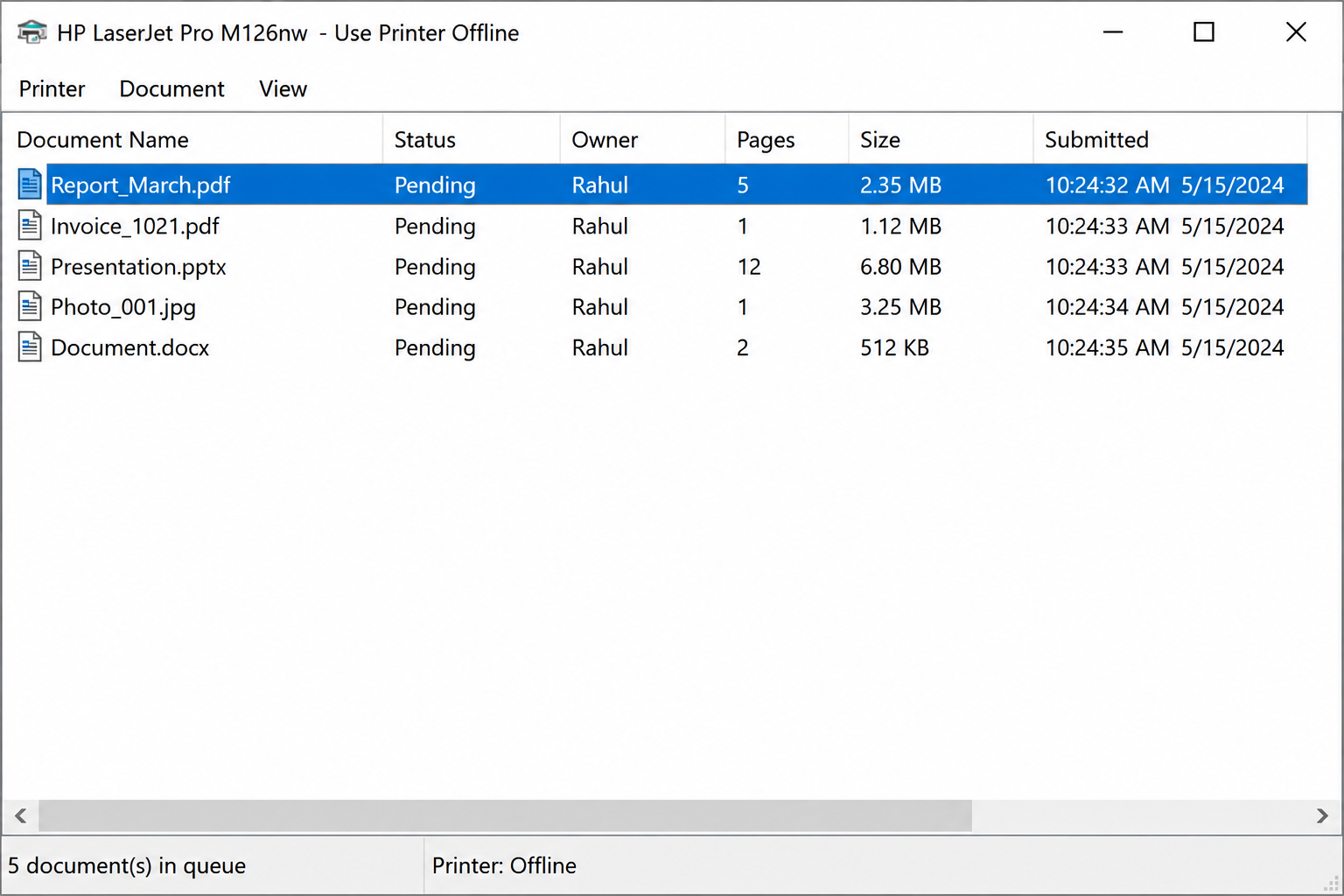
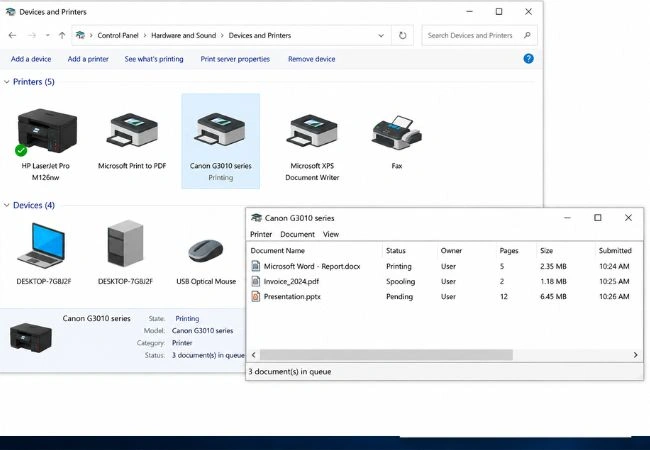
Print Queue Stuck

Old documents may remain pending and block new print jobs. The print queue shows the order of print requests and whether any job is paused, stuck, or waiting.

Pending jobs Paused queue Blocked print request
WiFi Printer Not Found
Screen example 05

WiFi Printer Not Found

A wireless printer may be powered on but not appear during search. This usually relates to network visibility, same Wi-Fi connection, or printer discovery behavior.

Same network Printer discovery Wireless visibility
Add Printer Not Showing
Screen example 06

Add Printer Not Showing

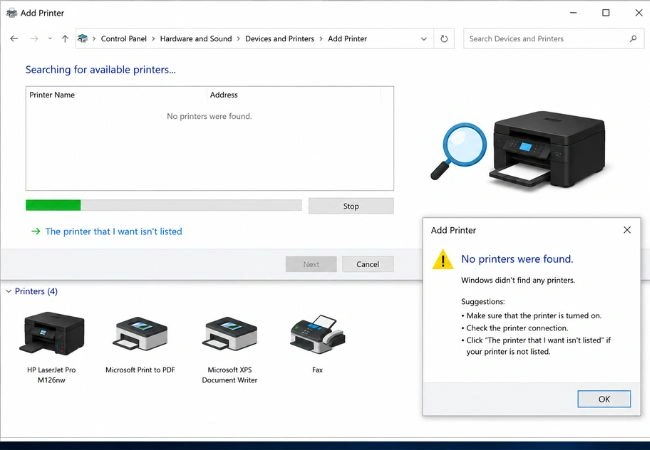
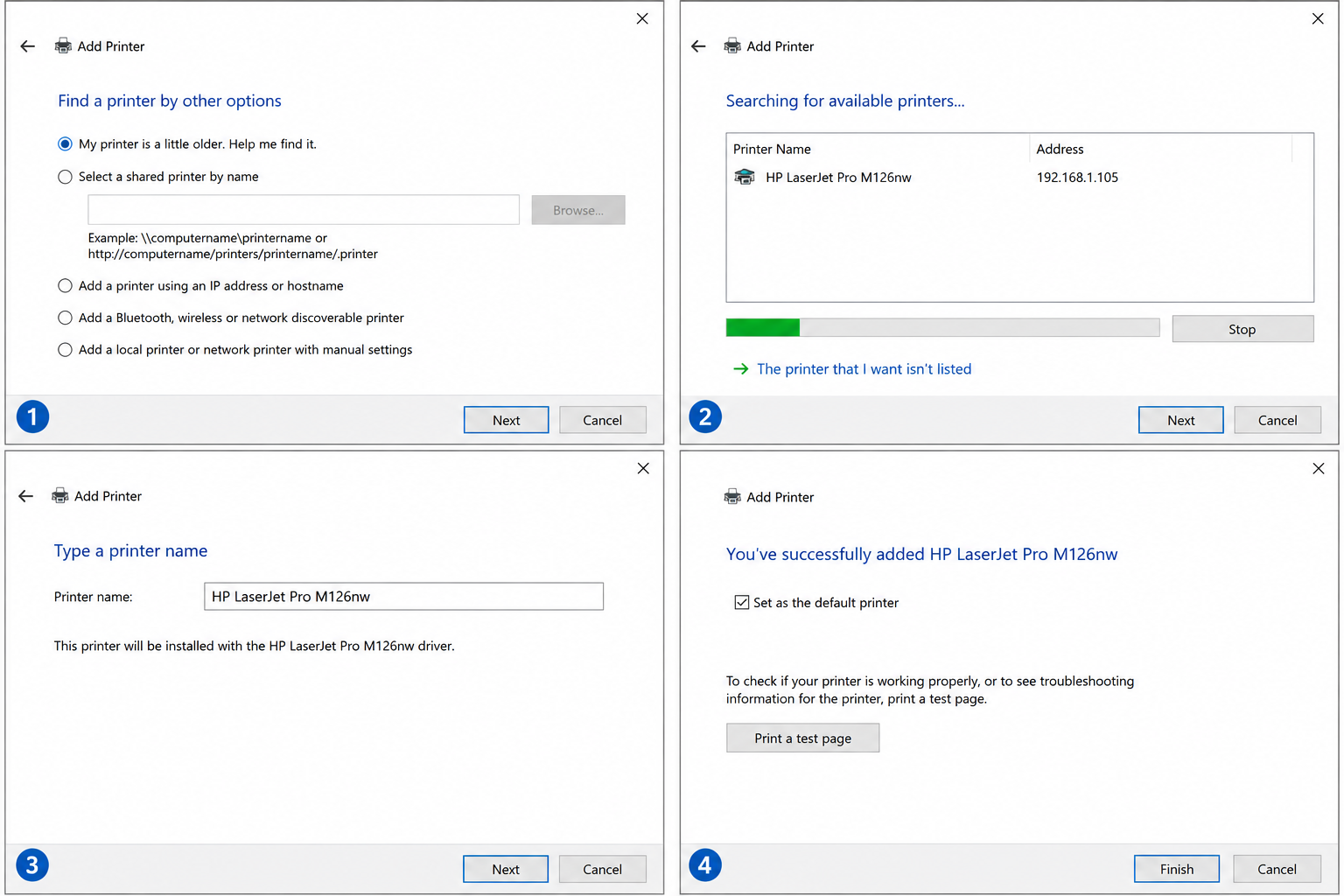
The Add Printer screen may not show the model immediately. The system usually searches available USB, network, or wireless printer paths before listing a device.

Add printer screen Device search Printer not listed

Control panel style guide

Where users usually check printer status.

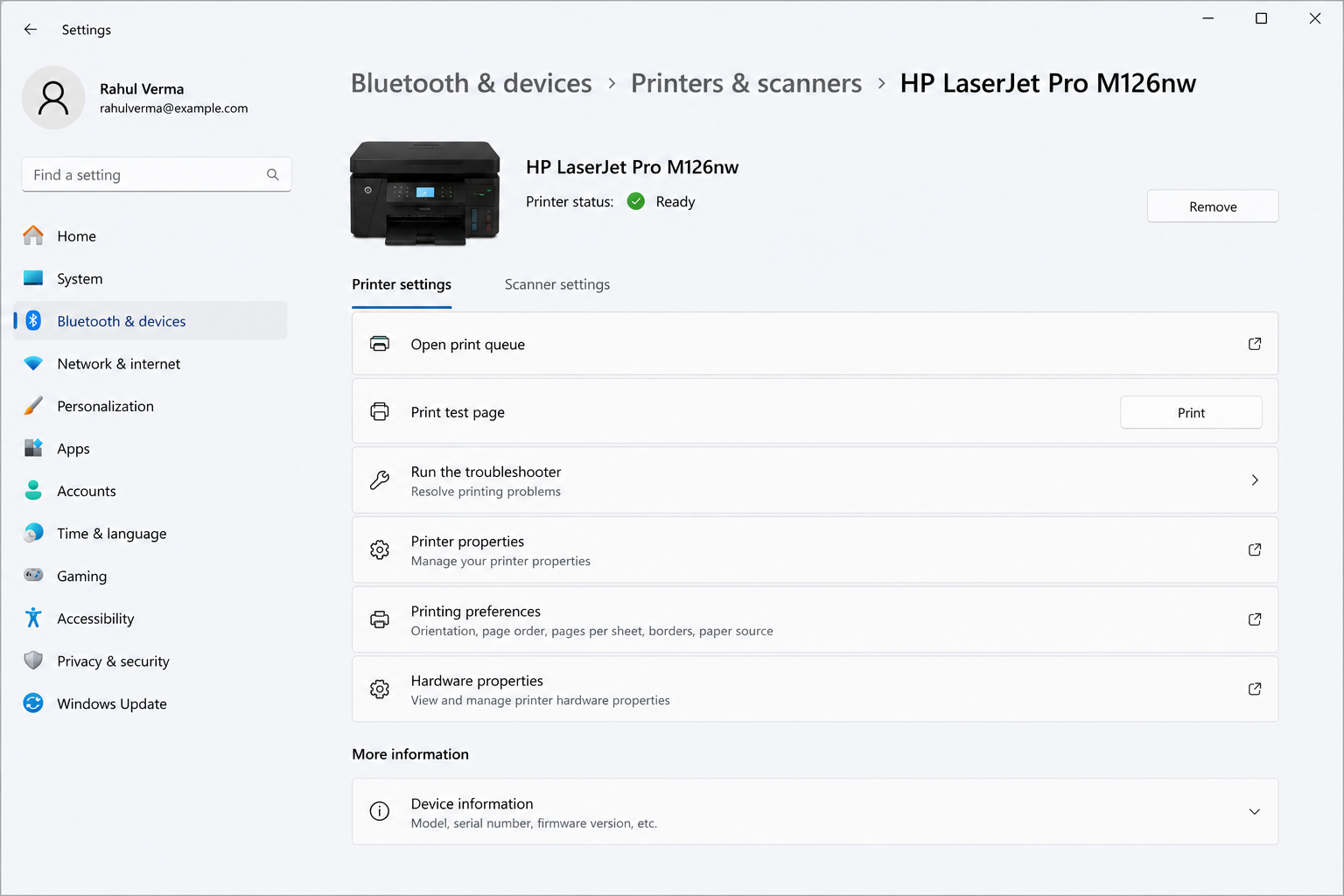
Printer settings, Devices & Printers, print queue, and Device Manager are common areas where printer status and driver information appear.

Devices & Printers

Shows connected printers and their basic status.

Print Queue

Shows pending, paused, or failed print requests.

Device Manager

Shows unknown device or missing driver warnings.

Control panel printer status example

Printer learning basics

How printers communicate with computers.

Before understanding offline messages, driver warnings, or print queue issues, it helps to understand the normal printer communication path. A printer usually needs a connection path, a driver, and an active print queue before documents can move from the computer to the printer.

Connection path

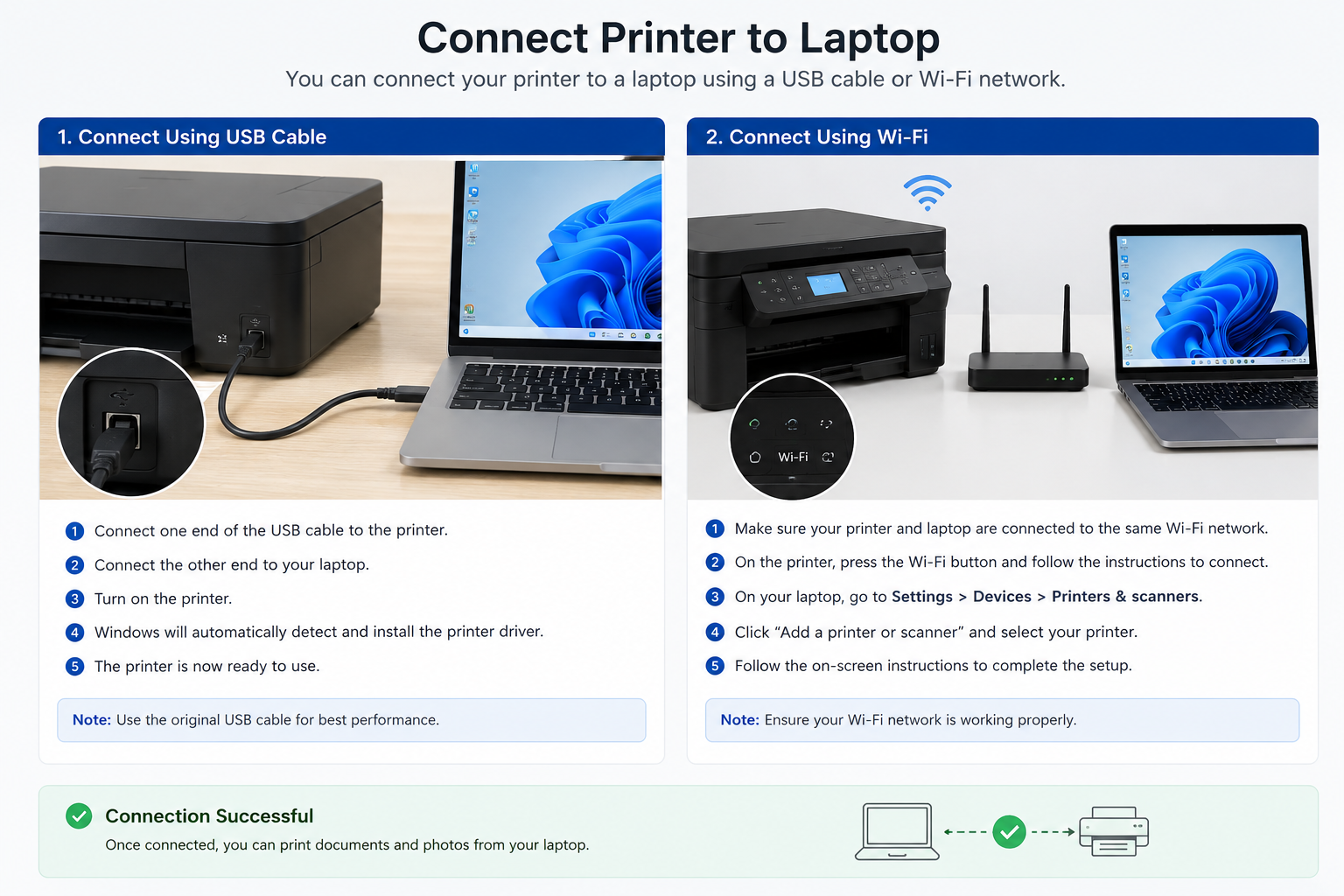
USB, Wi-Fi, or network path lets the computer find the printer.

Driver layer

The driver helps the operating system talk to the printer.

Print queue

Print jobs wait in order before the printer processes them.

Common signs users may notice

These signs usually appear before users check printer settings.

Offline status

Printer appears in the list but shows offline or unavailable.

Driver warning

Driver unavailable, unknown device, or warning symbol appears.

Queue stuck

Documents remain pending and new print jobs do not continue.

Network search

Wireless printer does not appear during printer search.

Driver installation flow

How printer driver setup usually works.

These steps explain the normal learning flow: connection, settings, driver communication, print queue, and test page.

Connect Printer
Step 01

Connect Printer

Plug USB cable or connect printer to WiFi network.

Open Printer Settings
Step 02

Open Printer Settings

Go to printer settings or Devices & Printers area.

Add Printer
Step 03

Add Printer

Choose Add Printer and let computer search for available printer.

Install Driver
Step 04

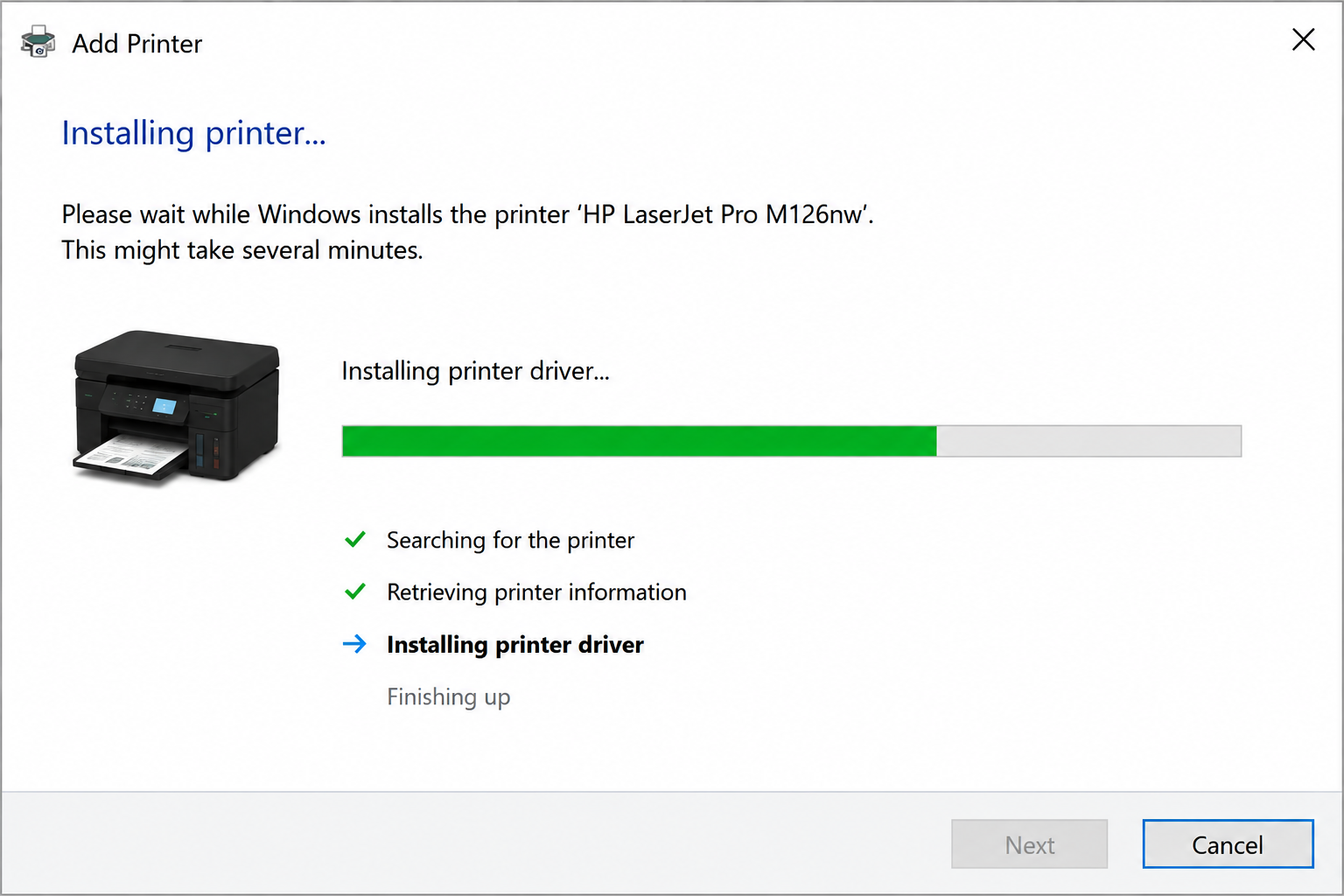
Install Driver

System uses a driver so printer and computer can communicate.

Check Print Queue
Step 05

Check Print Queue

Clear old jobs if print requests are stuck.

Print Test Page
Step 06

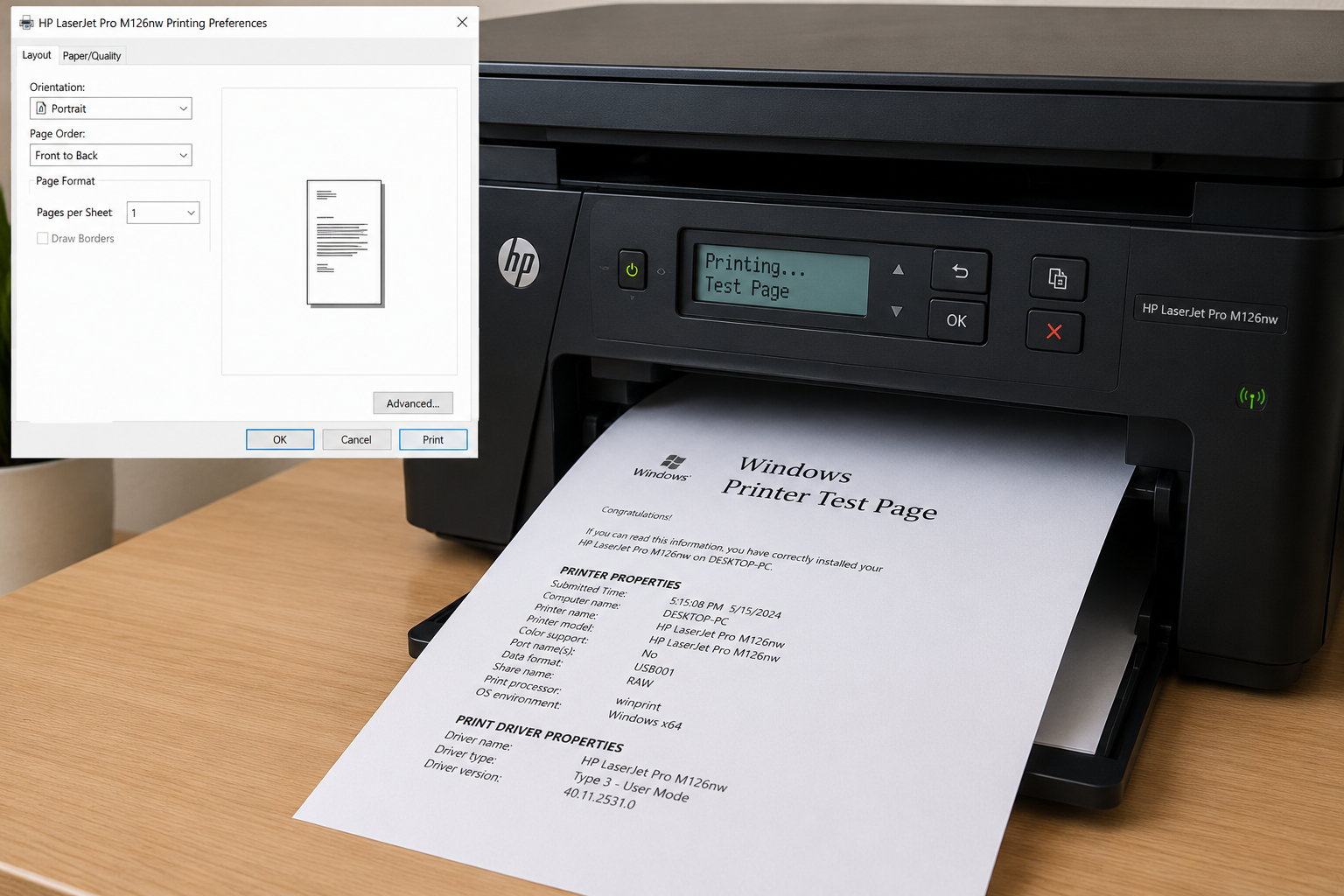
Print Test Page

Send a test page to confirm the printer path works.

What a driver does

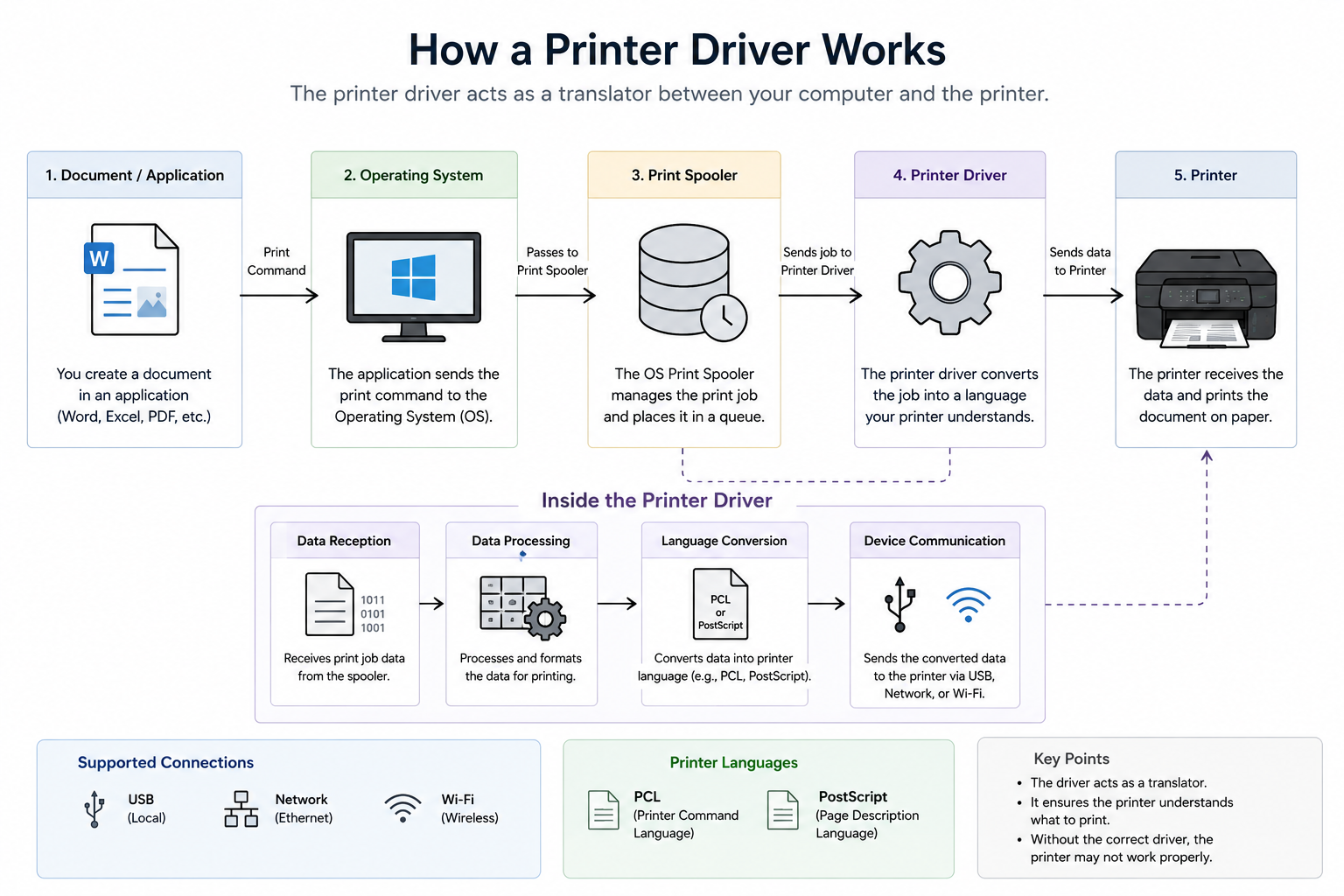
A driver is the translator between computer and printer.

When you click print, the document does not directly go to the printer. The driver helps convert the document into instructions the printer understands.

Printer driver architecture flow

Printer driver facts

Simple concepts behind printer communication.

These notes explain why a printer may need a driver, why queues exist, and why connection methods can affect printer visibility.

FACT 01

Drivers help communication

Drivers allow operating systems and printer hardware to exchange instructions.

FACT 02

Printers use queues

Print requests are normally stored in a queue before they are processed.

FACT 03

Connection methods differ

Printers may communicate through USB, Ethernet, or Wi-Fi connections.

Quick checklist

Check these things in this order.

This checklist is for learning and awareness only. It helps readers understand the common order in which printer connection topics are usually reviewed.

01

Is the printer turned on?

Power light, display, and printer ready state.

02

Is the cable or WiFi working?

Reconnect USB cable or check same WiFi network.

03

Is the printer visible?

Check printer list in settings or Control Panel.

04

Is driver installed?

Driver missing can show printer unavailable.

05

Is print queue clear?

Old stuck jobs can block new print requests.

06

Can it print a test page?

Test page confirms basic communication path.

Related learning topics

Continue with nearby driver concepts.

Continue learning

Learn more driver concepts.

Explore related educational guides about audio, graphics, network, USB, chipset, Bluetooth, and other driver topics.